
Quick guide: Log in to your hosting control panel. Open phpMyAdmin. Select the wp_users table. Click Edit next to your username. Enter the new address in the user_email field. Click the Go button. Done!
Detailed guide
If you cannot change your email address from the WordPress dashboard, you can do it directly in the database using the phpMyAdmin interface.
1. Access the database
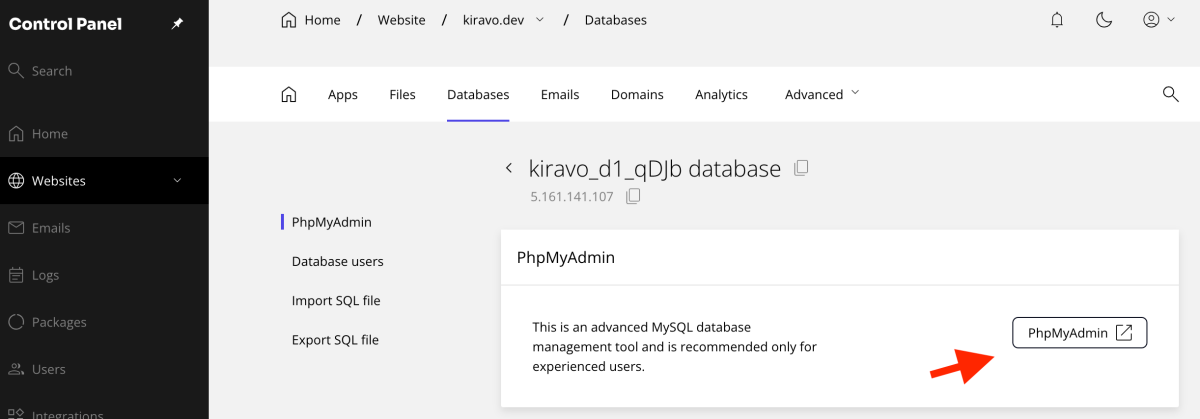
If you have a Managed WordPress hosting service from Kiravo, log in to your control panel and go to the Databases section. Click Manage next to the active database. Click the phpMyAdmin button to open the interface. Here is a full tutorial on accessing phpMyAdmin.
2. Locate the users table
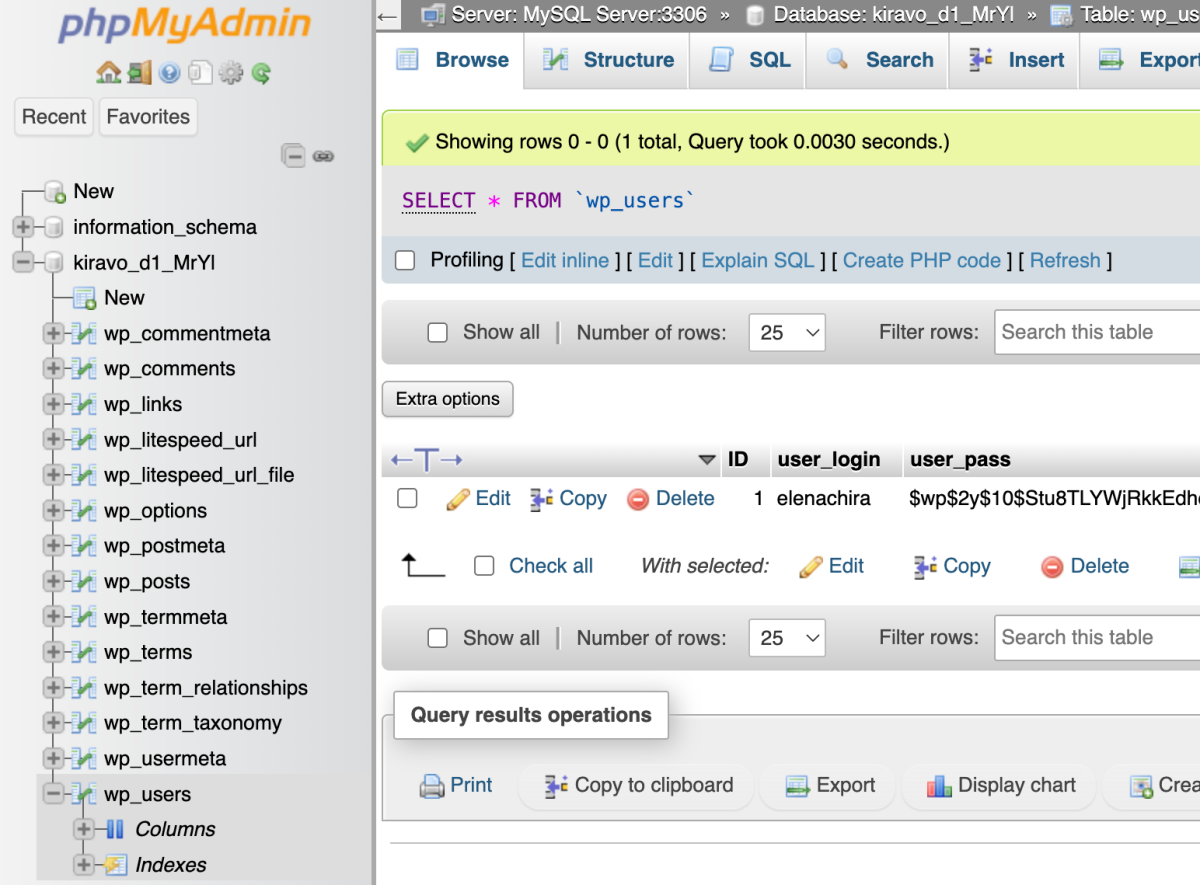
Click the database name from the list on the left. Look for the wp_users table. The name might include a custom prefix. Click the table name to see the list of all website users.
3. Edit the WordPress administrator profile
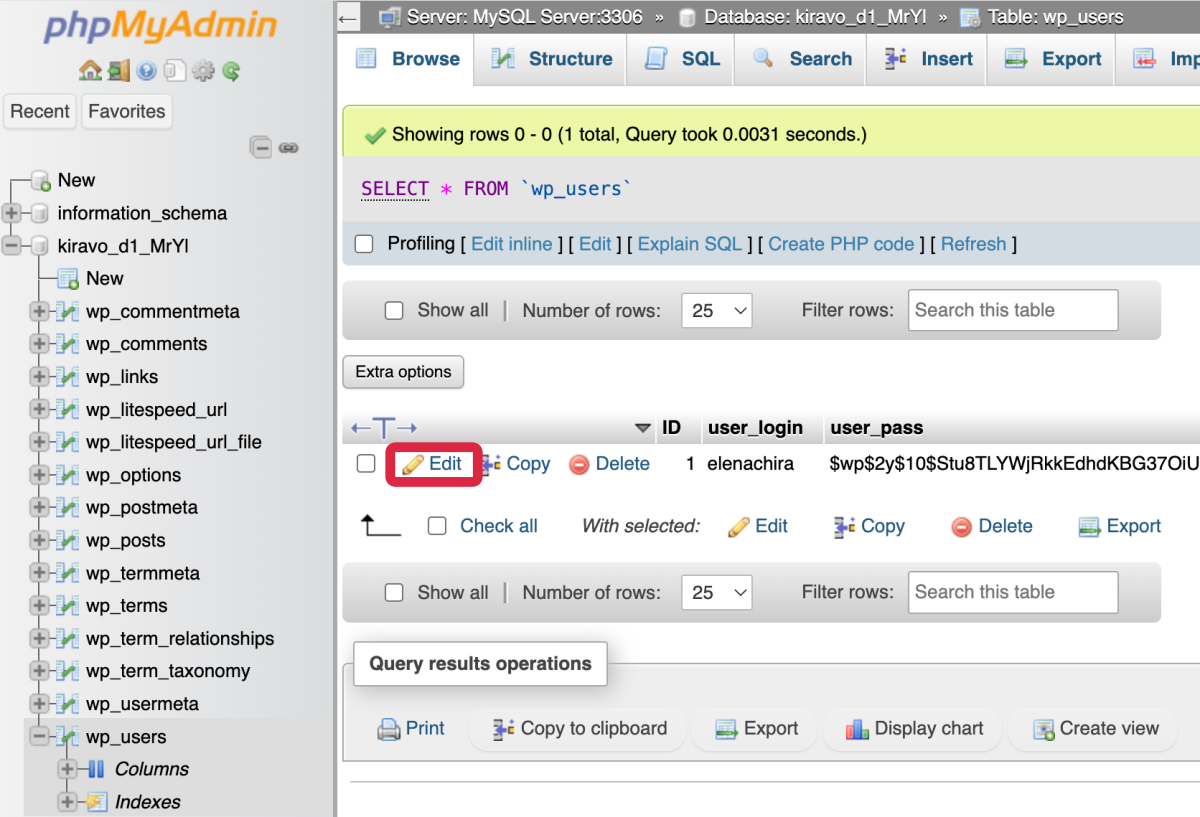
Find the administrator user row. Click the Edit button.
Identify the user_email row. Delete the old address. Enter the new email address.

4. Save the information
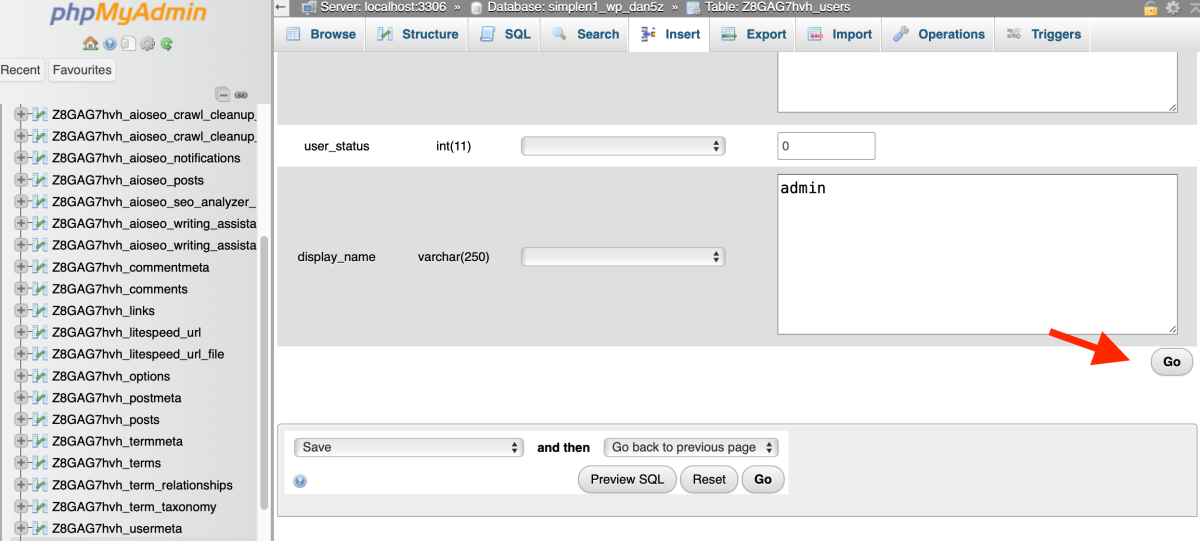
Go to the bottom of the page. Click the Go button. The new WordPress user email address is now saved in the database.
If you need assistance, please contact the Kiravo support team.
