
You can access your website’s database directly from your hosting control panel. After logging in and selecting your site, navigate to the Databases section and launch phpMyAdmin next to the database name.
Direct database access is an essential part of managing any website. If you are running a WordPress site the ability to view and manage your data provides enhanced control for troubleshooting and maintenance.
Accessing your database on Kiravo control panel (video + instructions)
This guide outlines the simple steps to access your database through the Kiravo hosting control panel.
If you prefer to follow written instructions at your own pace, the detailed guide below outlines each step shown in the video.
1. Log in to the Kiravo control panel
Begin by logging in to your Kiravo client account. On your dashboard, you will see a list of your hosted services and websites. Click on the domain or website you wish to manage.
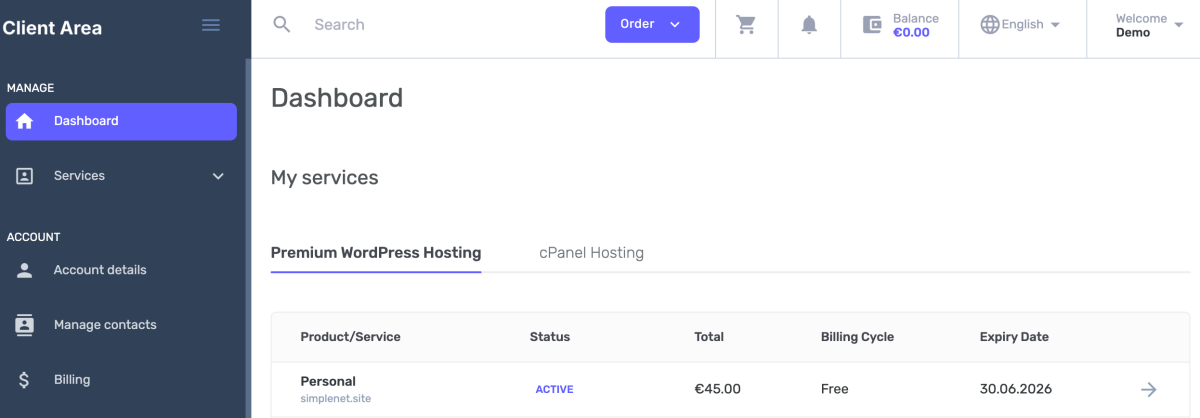
2. Select Your Website
Click the Access Control Panel buton. This will open the specific site administration area.

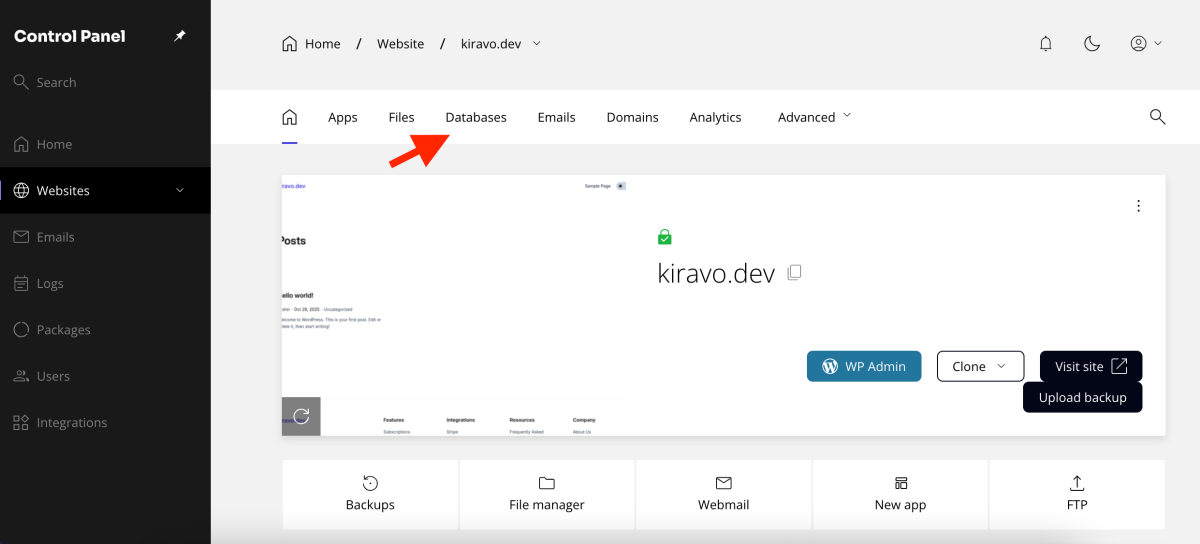
3. Access the Databases section
Once in the control panel, click on your website.
Locate and click on the menu option labeled Databases. Here, you will find the databases associated with your website.
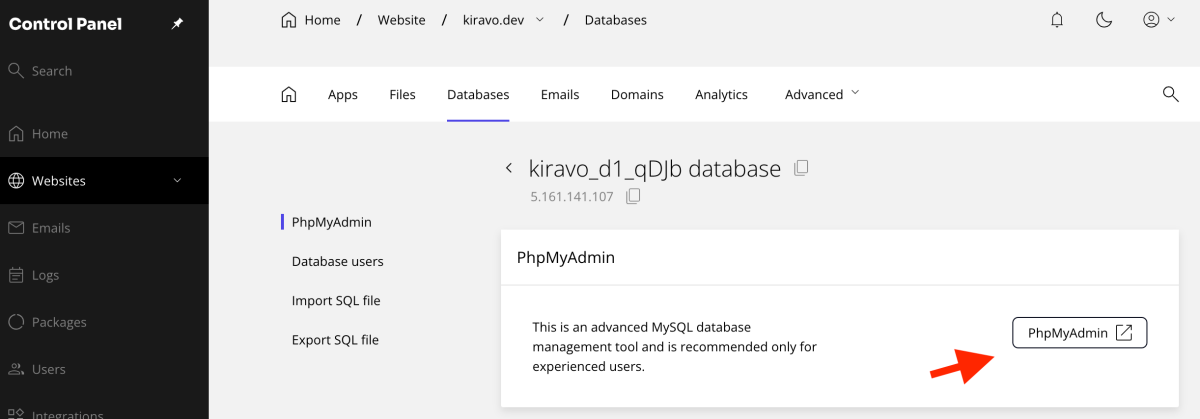
4. Launch phpMyAdmin
Click on the database.
Then, click on the phpMyAdmin button. The tool will launch in a new tab. This is the standard utility for managing database content.
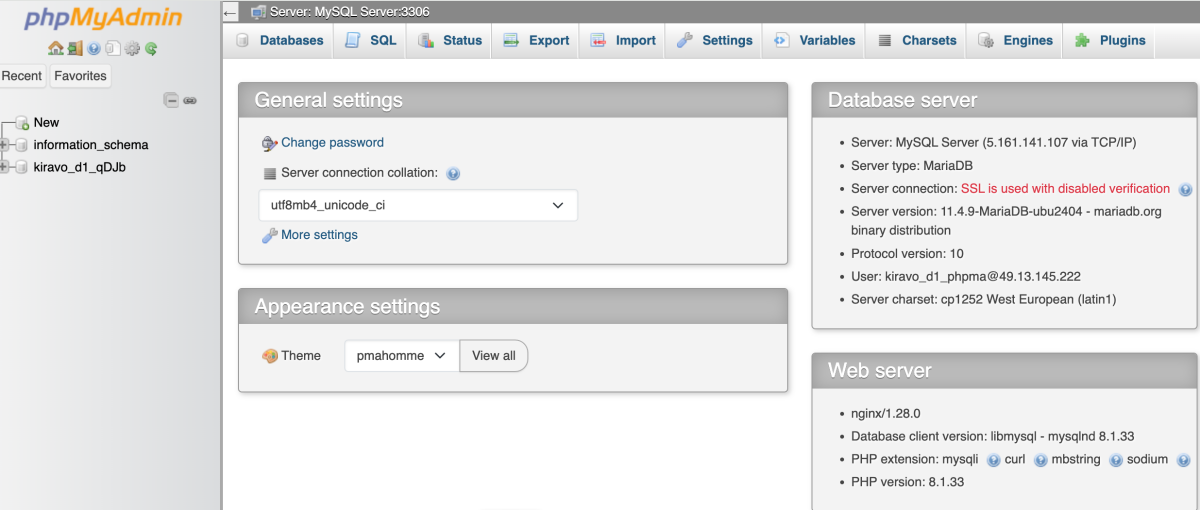
5. Connect (If necessary)
You may be prompted for the database username and password (these were established when the site was installed). Once connected, you will see all the tables (e.g., posts, users, settings) of your installation.
Control and flexibility – why access matters
Direct database access allows you to perform critical operations, bringing simplicity to site maintenance:
- Troubleshooting: Quickly investigate connection errors or content issues.
- Backup & Migration: Exporting the database is a key method for creating complete data snapshots.
- Advanced Modifications: It allows for manual adjustments, such as cleaning up leftover tables from plugins or modifying critical settings.
Important Reminders
- Always create a full backup of your site and database before making any changes. A minor mistake can compromise your site’s functionality.
- Use strong, unique passwords for all database users.
In summary
Accessing your website database on Kiravo Hosting is a fluid process: Log in → Select Site → Databases → phpMyAdmin. We provide you with the necessary control to maintain a stable and secure hosting environment.
Should you have any questions or require assistance, our support team is available to guide you.

Leave a Reply