
You can clone your WordPress site directly within the Kiravo control panel using two main methods: either by selecting Add Website and choosing the cloning option, or by navigating directly to the source site and using the specific Clone or Push Live (for staging sites) buttons. Both methods automatically finalize the cloning and database update in just a few minutes.
Cloning a website is an essential requirement for developers and anyone looking to test major changes. Whether you need to create a dedicated development environment (staging) or move your site to a new domain, Kiravo offers integrated tools to perform this quickly, without needing external plugins or advanced technical knowledge.
3 ways to clone a WordPress site – text tutorial
The Kiravo control panel provides multiple ways to achieve the same result: a fully duplicated and ready-to-use website.
1. How to clone your WordPress to a new domain
This method is ideal when you want to clone your site to a completely new destination (a new domain or a staging subdomain).
1.1. Log in to the Kiravo control panel
Log in to your Kiravo control panel. Click on the Add website button.
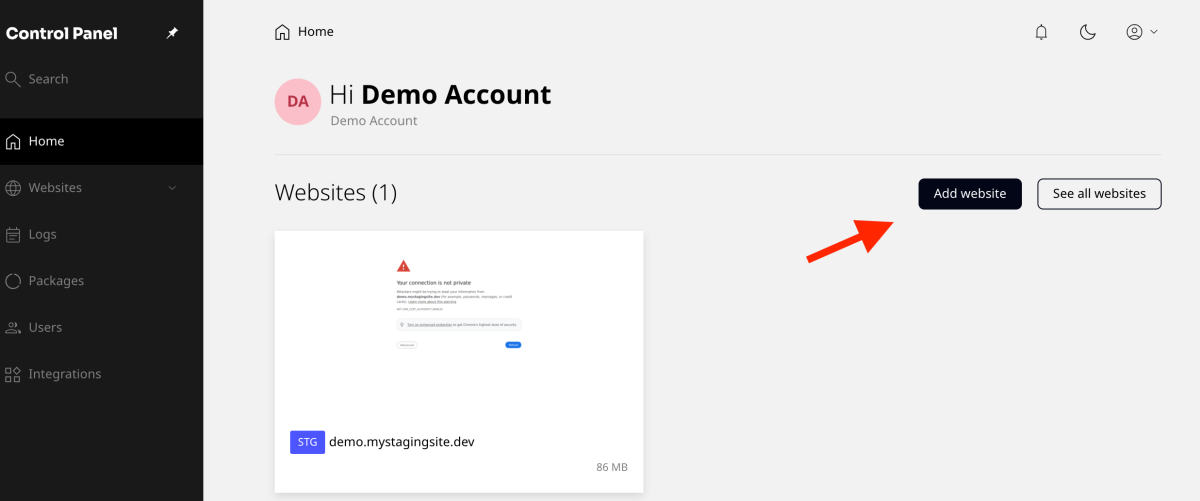
1.2. Select the destination
Choose the desired destination type:
- Production Site (on its own domain) or
- Staging Site (on a subdomain like mystagingsite.dev).
Immediately after, select the Clone a website option.
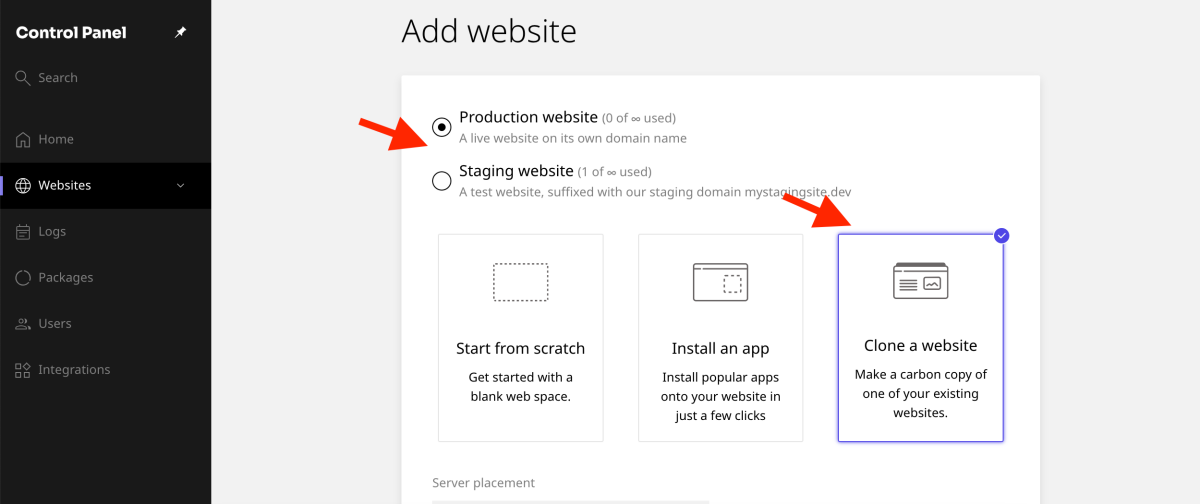
1.3. Finalize the clone
Select the server location and fill in the domain name. Then, select the source site you wish to clone from the displayed list. Finally, click the Add button. Ensure the Search and replace option remains checked.
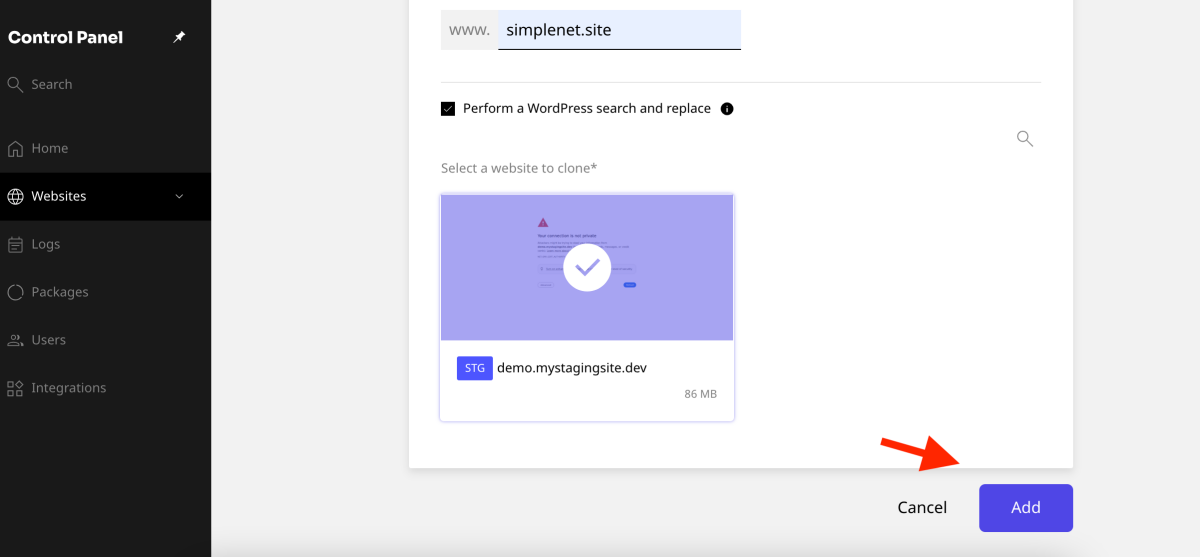
The system will create the destination and copy the entire content and database, automatically performing the domain Search and Replace operation.
2. How to clone your website – the quickest method
This method is the fastest and is available directly on sites that have their own domain (production sites).
2.1. Access the Websites section and initiate the clone process
Navigate to the Websites section and click on the site you wish to clone. Then, push the Clone button.
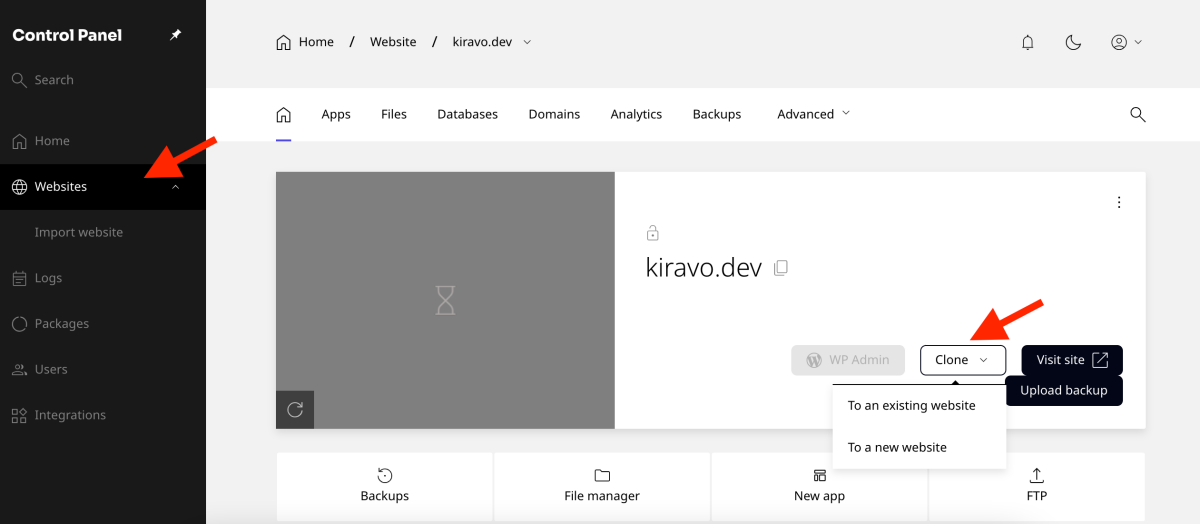
2.2. Destination options
You have two choices: cloning to an existing site or creating a new site.
A. Clone to an existing website
Choose the option to clone to an existing site (a destination already created). Select the destination site from the list and click the Clone button.
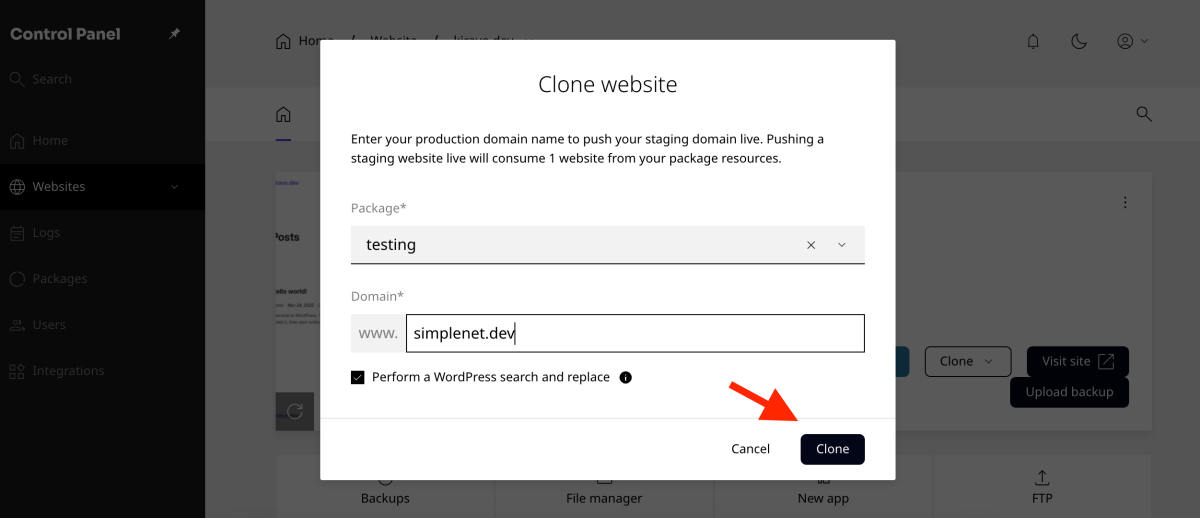
B. Clone to a new website
If you want to clone the site to a completely new destination, select the hosting package and fill in the domain name. Make sure the Search and Replace option remains checked to automatically replace the old domain with the new one in the database. Click the Clone button to finalize the operation.
3. Manage staging sites: the Push Live option
Sites created as staging environments do not have the Clone button; instead, they use the Push Live option. This feature is essential for moving tested changes back to a production site.
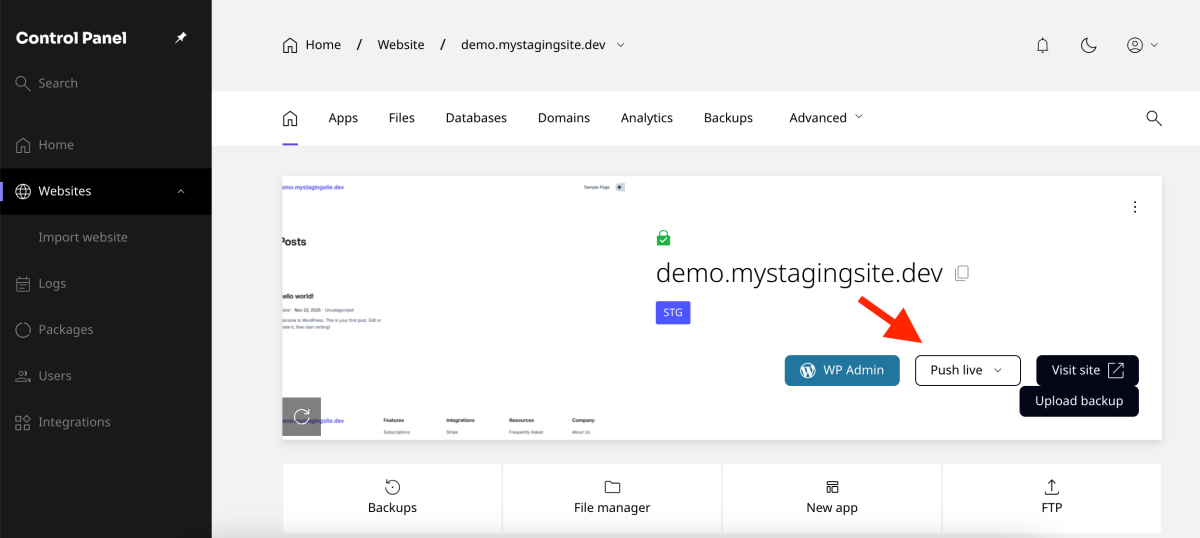
3.1. Initiate the deployment
Navigate to the staging site in the control panel and click the Push Live button.
3.2. Destination options (similar to cloning)
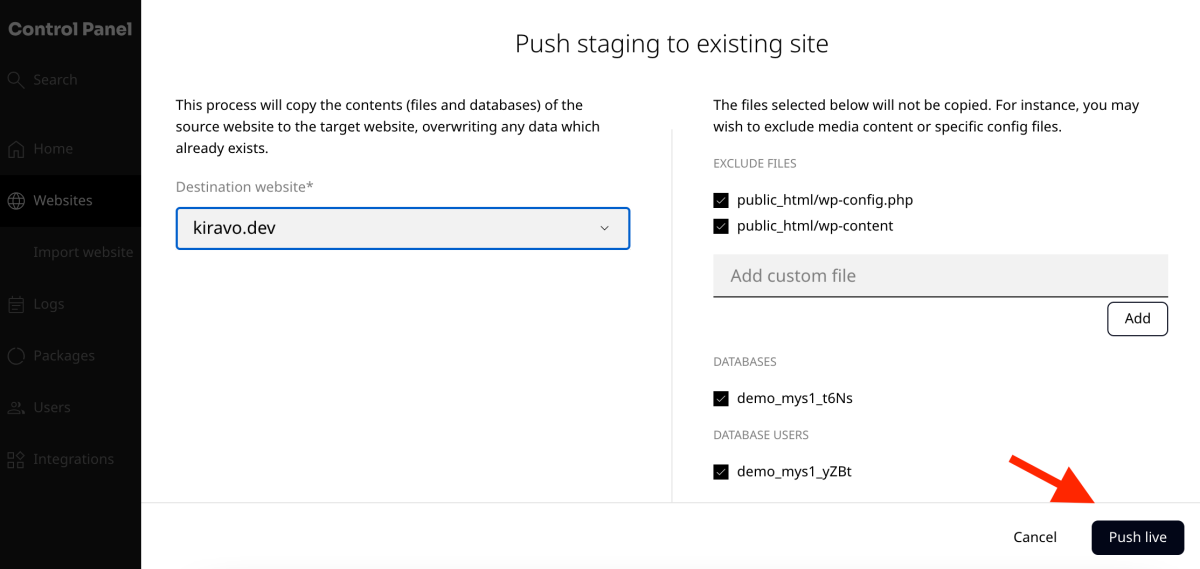
A. Deploy to an existing site
Choose the option To an existing website. Select the destination site (your main production site) from the list, then click Push Live.
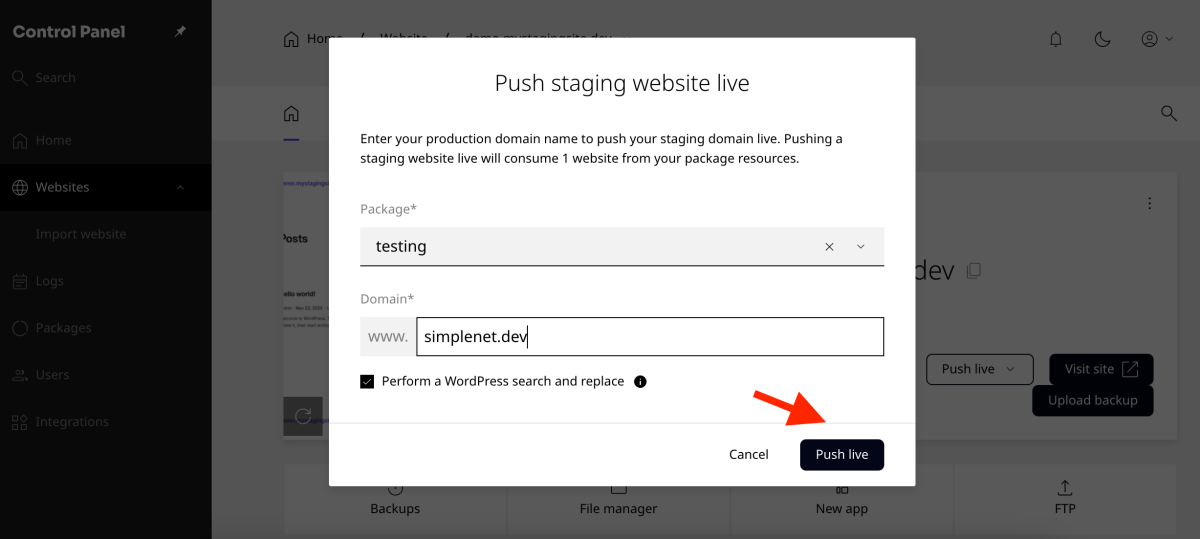
B. Deploy to a new site
Choose the option To a new website. You will need to select the hosting plan and fill in the domain (your new production destination). Click Push Live to finalize the process.
Conclusion
Whether you choose to clone or deploy live, the Kiravo Hosting control panel provides you with the necessary tools to manage your development and production environments with flexibility and confidence. You can now test any changes with ease, knowing you have a fast method to duplicate and launch sites.
As always, if you need any help, do not hesitate to contact the Kiravo support team.

Leave a Reply