
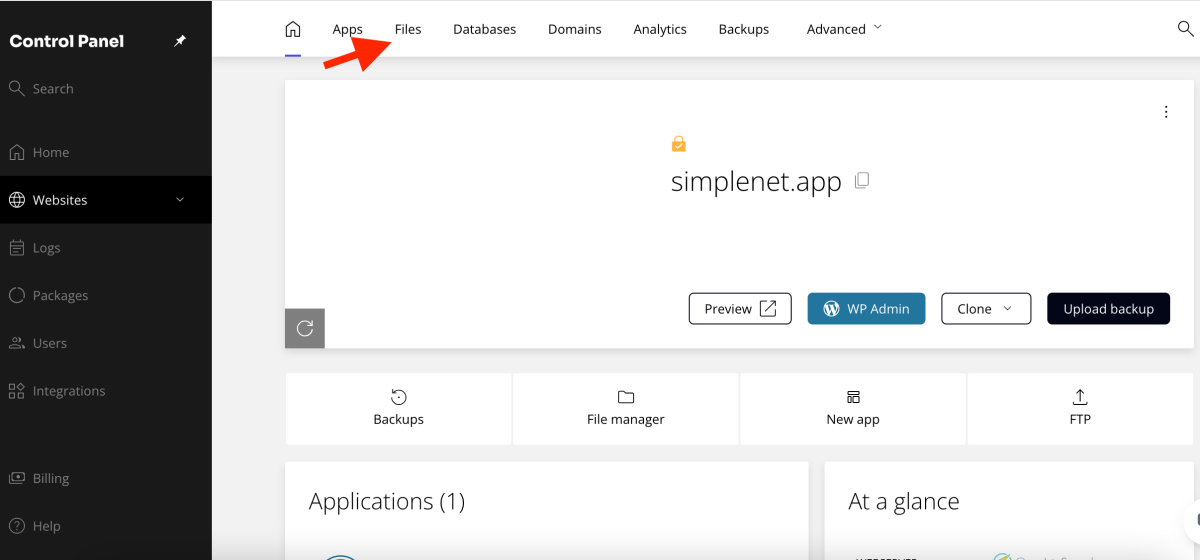
To access your files on premium managed WordPress hosting from Kiravo, please log in to your control panel. Select the desired site and click on the Files tab. Your main website files are located in the public_html directory, where you can manage them using the integrated file manager.
Accessing website files is a fundamental task. Whether you upload new content, edit existing code, or examine the site structure, you need an efficient way to interact with these elements.
The Kiravo control panel includes an intuitive file manager that simplifies this process. It provides a direct method for interacting with all components of your site.
Managing your WP files tutorial (video + text)
For a visual presentation of how to navigate and manage files in the Kiravo control panel, we invite you to watch our video tutorial below.
If you prefer to follow written instructions at your own pace, the detailed guide below presents every step shown in the video.
1. Access the File Manager
The first step is to log in to your Kiravo control panel. From the main dashboard, select your website. Then, click on the Files tab.
2. Navigate through your website files
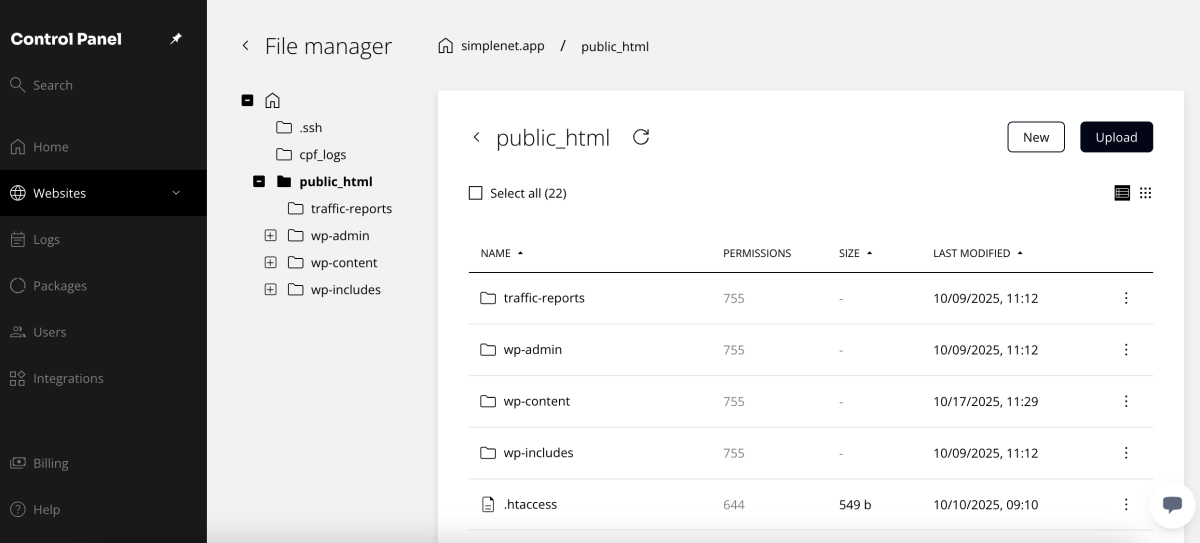
Once in the file manager, you will see a directory structure.
Your site’s essential files are usually located in the public_html folder. Click on this folder to view its contents. Inside the public_html directory, you will find all your website’s files and folders.
3. Perform actions on files
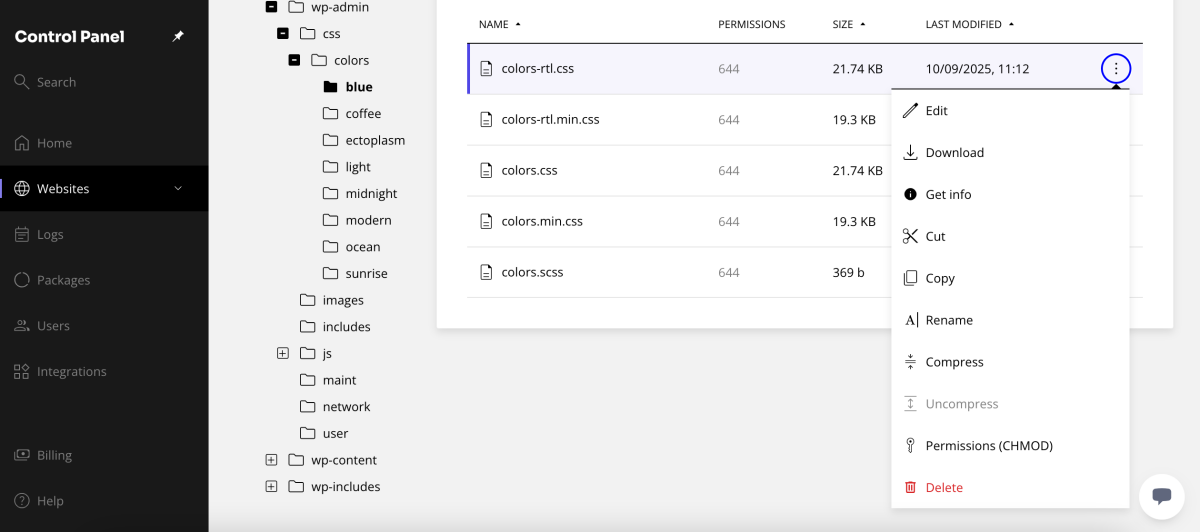
The file manager in the Kiravo premium hosting control panel offers various actions for efficient management:
- Selection: A simple click selects a file or folder.
- Action Menu: You will notice a list of available actions at the bottom of the screen. Clicking the three dots next to a file also reveals these actions.
- Creating New Files/Folders: You can create a new file or folder as needed.
- Uploading Files: You can upload files or folders directly from your computer.
- Changing View: You can switch between list view and grid view for better organization.
- Editing Files: To edit a file, double-click it. An editor will open, allowing you to modify the code. You can expand the editor to full screen, save changes, and then close it.
The Kiravo built-in File Manager is designed as a direct and accessible tool for maintaining your website content.
If you need help, do not hesitate to contact the Kiravo support team.

Leave a Reply