
Log into the Kiravo control panel and select your website. Go to the Backups section and pick a restore point. Click Restore, then choose Custom. Select only the database and click Restore Now to finalize.
A database is the heart of your WordPress site. It stores your posts, comments, and essential settings. When errors occur, restoring only the database can fix your site without affecting your recent file changes. Kiravo makes this process simple through automated backups.
Tutorial on restoring your website’s database (video + text)
Automated backups offer a safety net for your data. Follow these steps to restore your database to a previous state directly from your hosting panel.
If you prefer to follow written instructions at your own pace, the detailed guide below outlines each step shown in the video.
Log in to the Kiravo control panel
Begin by logging in to your Kiravo client account. On your dashboard, you will see a list of your hosted services and websites. Click on the domain or website you wish to manage.
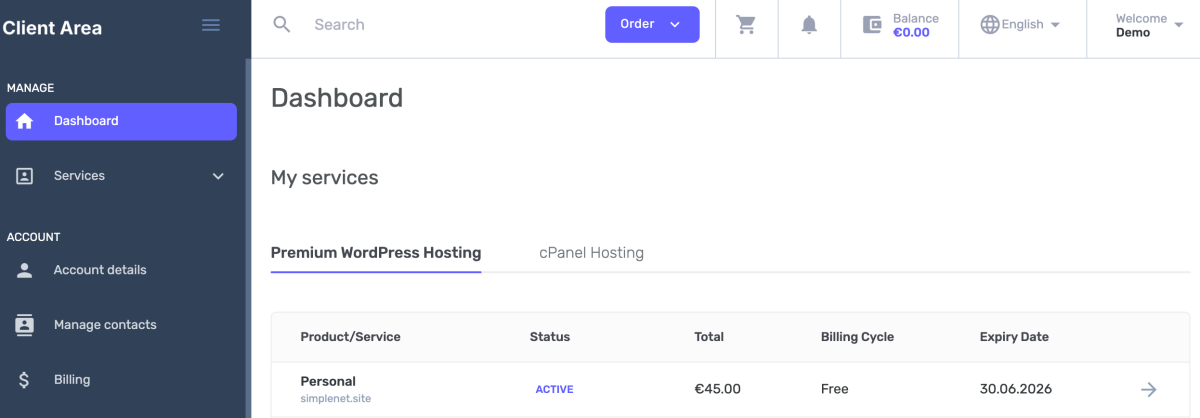
Select your website
Click the Access Control Panel buton. This will open the specific site administration area.

Access the Backups section
Once in the control panel, click on your website.
Locate and click on the menu option labeled Backups. You will see a list of available points organized by date.
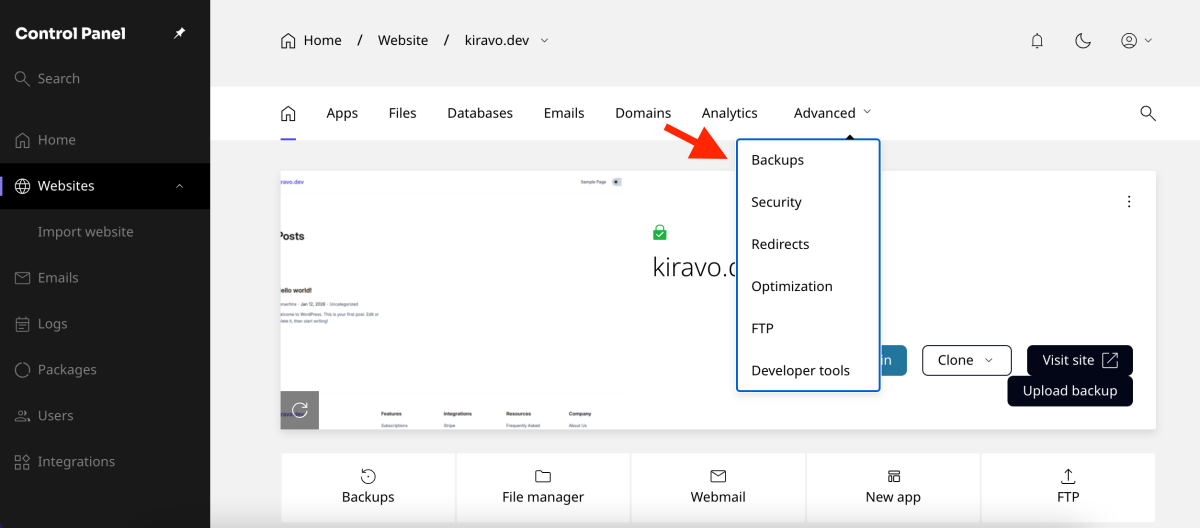
Select your restore point
Review the available dates and choose the one that matches your needs.
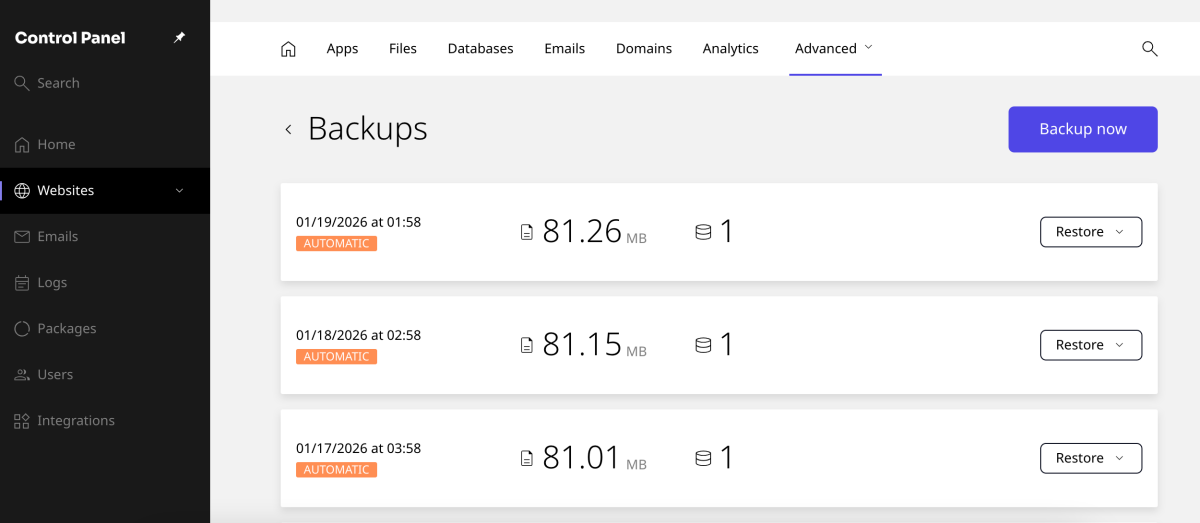
Click the Restore button next to that specific entry. This action opens the options for the restoration process.
Choose custom database restore
Click on the Custom option. This allows you to select specific components instead of a full site restore.
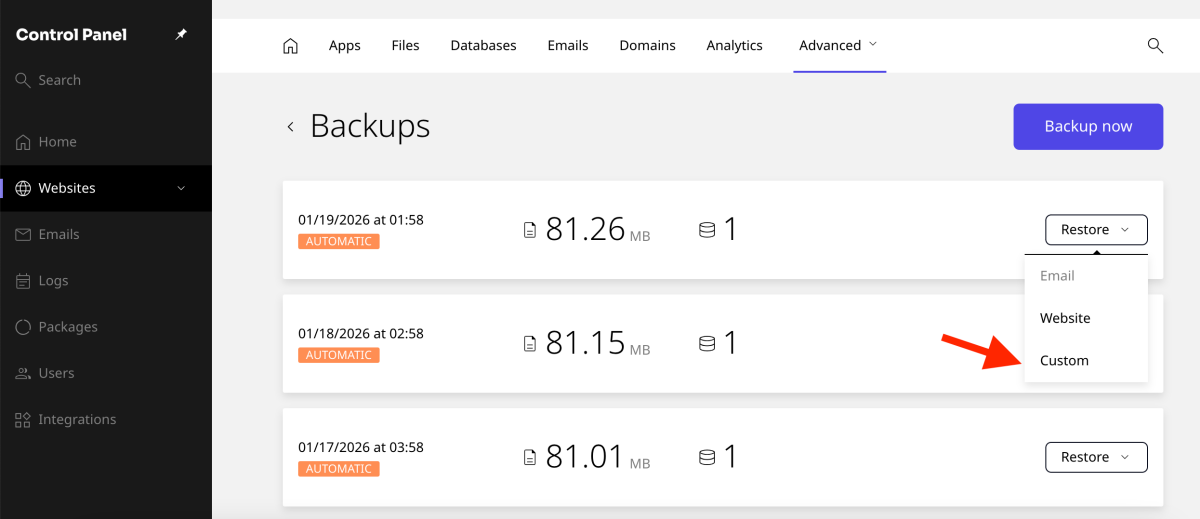
Check the box for the database. Click the Restore Now button to proceed.
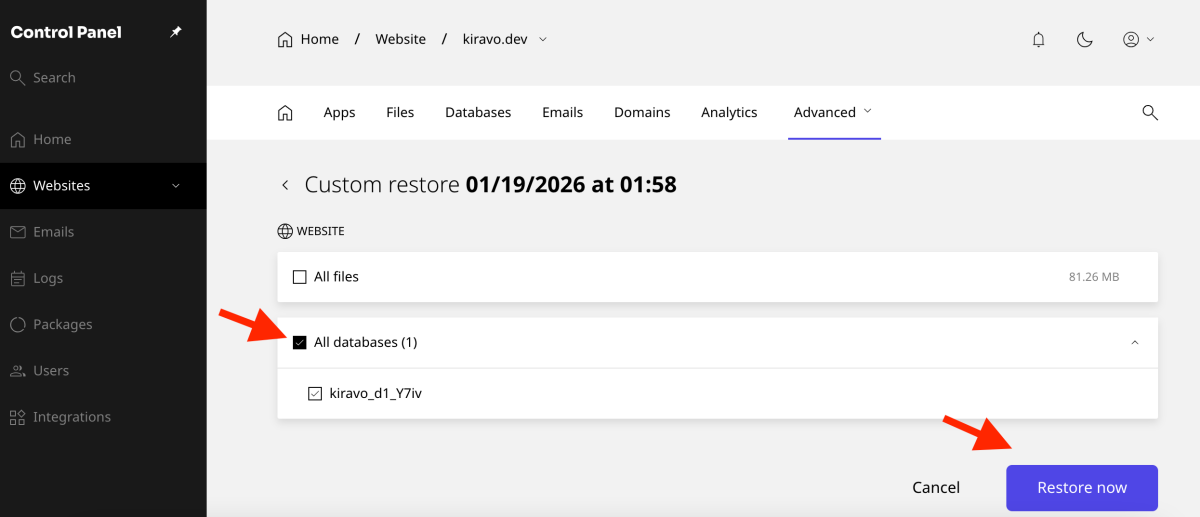
Finalize the process
Click the final Restore button to confirm.
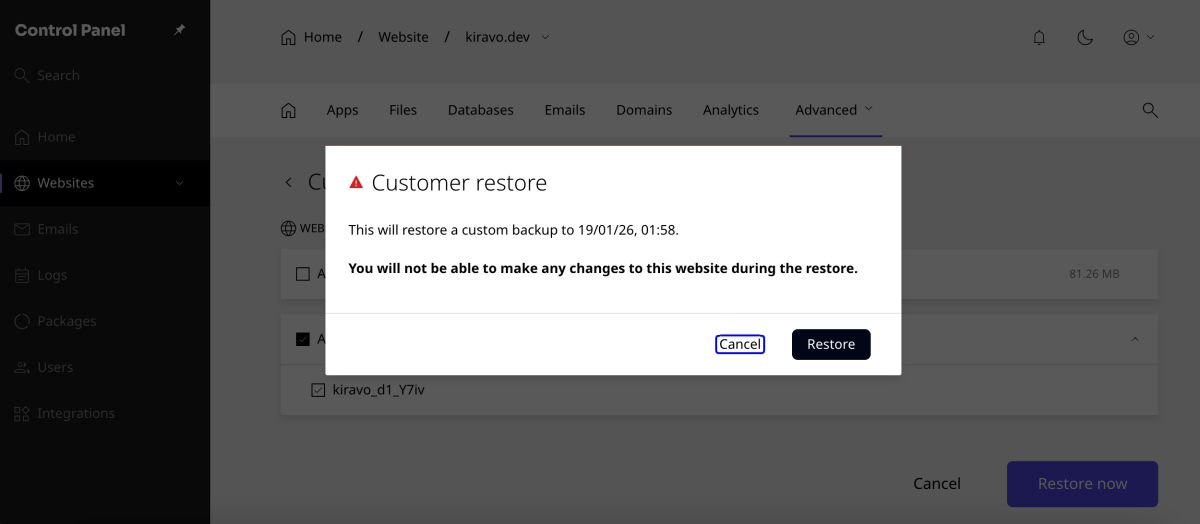
The system begins the restoration immediately. The time required depends on the size of your database. You will see a message once the website restore is complete. Your database is now back to its previous state.
Should you have any questions or require assistance, our support team is available to guide you.

Leave a Reply