Before we dive into changing the WordPress memory limit, let’s understand why it’s different from the PHP memory limit. You will find that most articles online, even from reputable sites, treat the two as if they’re the same thing. They’re not.
The WordPress memory limit is not the same as the PHP memory limit.
The PHP memory limit is the maximum memory any PHP script can use during its execution. This limit is set in php.ini and controls every PHP script running on the server, WordPress included.
The WordPress memory limit is a WordPress-specific setting that defines how much memory the platform can use within the server’s PHP memory limit.
So, think of the WordPress memory limit as a subset of the PHP memory limit.
This limit is defined within WordPress but is ultimately controlled by the PHP memory limit set in the server’s php.ini file. If WordPress tries to allocate more memory than PHP allows, it will still be restricted by the server settings.
By default, WordPress allocates:
- 40 MB for front-end operations
- 256 MB (or the
memory_limitset inphp.iniif higher) forwp-adminoperations
If a website runs complex plugins, complex queries, or other memory-intensive operations, increasing the WordPress memory limit can help prevent errors such as “Allowed memory size exhausted” and improve overall performance.
If your WordPress site encounters errors due to low memory, raising the limit can resolve them.
How to check your current WordPress memory limit
You can check your WordPress memory limit using the WordPress Site Health Tool.
WordPress has a built-in tool that displays your current memory limit:
- Go to Tools → Site Health in your WordPress dashboard.
- Click the Info tab and expand the WordPress Constants section.
- Look for WP_MEMORY_LIMIT and WP_MAX_MEMORY_LIMIT, these show the maximum memory available to WordPress (frontend and backend respectively).
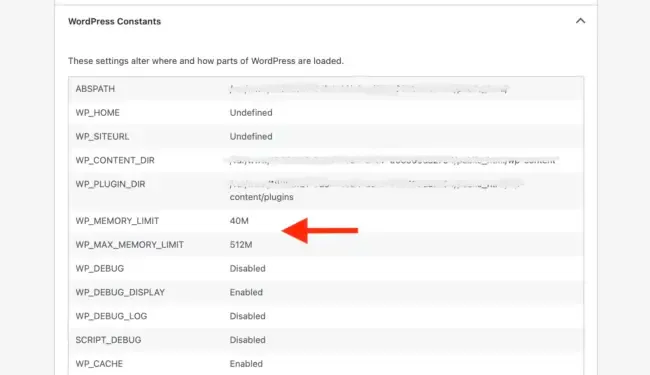
In the image above, the WordPress memory limit for the frontend is the default 40 MB, and for the backend (wp-admin) it’s 512 MB because the server’s PHP memory limit (set in php.ini) is 512 MB, higher than the 256 MB WordPress default for the backend.
How to increase the WordPress memory limit
If your WordPress site runs out of memory and you get errors like “Fatal error: Allowed memory size of xxxxx bytes exhausted” or “Fatal error: Out of memory”, raise the WordPress memory limit by editing wp-config.php.
This is the easiest way to set a higher memory limit in WordPress itself, and it requires no advanced technical expertise.
Copy the following code snippet
define('WP_MEMORY_LIMIT', '256M');
Find your wp-config.php file
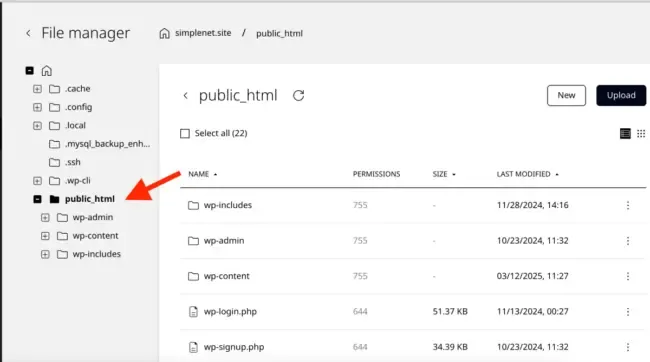
The wp-config.php file is usually in the root folder of your website where WordPress is installed. Depending on your hosting provider, it may be one folder above. On Kiravo, it’s in the public_html folder.
You can access the files using the File Manager in the Kiravo control panel or by connecting via FTP with a client like FileZilla. The easiest way is the File Manager:
- Log in to the Kiravo hosting control panel.
- Click on your website.
- Open Files.
- Click the
public_htmlfolder. - Double-click
wp-config.phpto open it.
Add the code to wp-config.php
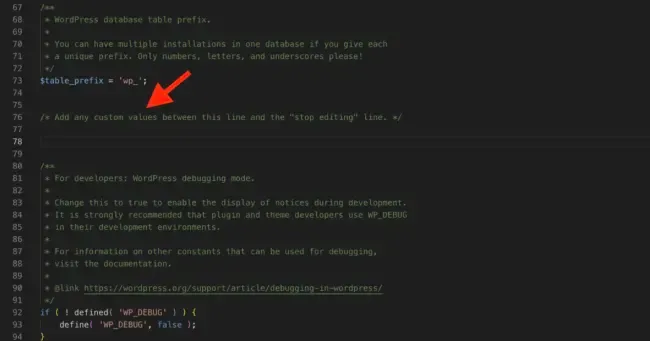
In wp-config.php, locate this line:
/* Add any custom values between this line and the "stop editing" line. */
Paste the snippet just below it:
define('WP_MEMORY_LIMIT', '256M');
Replace 256M with your desired value.
Save changes
Click Save. Close the file editor. The WordPress memory limit is now updated.
A quick note on the PHP memory limit
Remember: the default PHP memory limit on Kiravo servers is 512 MB. If you set a value higher than 512 MB in wp-config.php, it will not work, the server’s PHP memory limit caps the WordPress memory limit at 512 MB regardless.
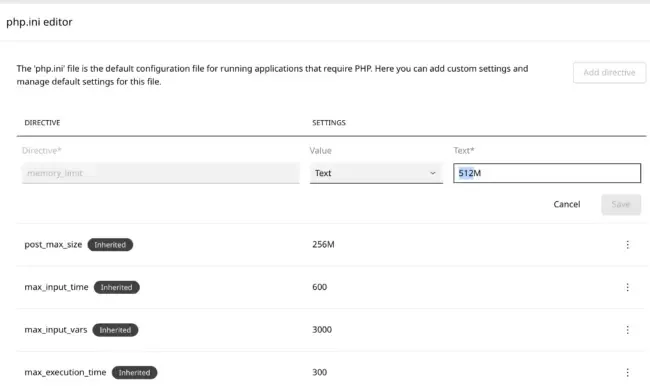
To raise the PHP memory limit to a higher value, open your control panel, go to Advanced → Developer Tools, scroll to the php.ini editor, double-click memory_limit, and set a new value like 1024M.
Note: the php.ini editor is available on Publisher, eCommerce, and VPS plans. Business plans stay at the default 512 MB memory limit; those tiers are sized for smaller brochure-style sites.
We actively monitor our servers to ensure stability and performance for all clients. When adjusting your memory limit, set a value that matches your site’s needs rather than arbitrarily increasing it. If you’re unsure, contact us, we’re happy to help you find the right balance.
If you get memory exhaustion errors, it’s best to collaborate with us to find out what’s causing the resource usage. Increasing the memory limit to very high values can do more harm than good.
Contact our support team if you need help.
Prefer a video walkthrough? Watch this guide on YouTube.