How to manage credit cards
Manage saved payment cards under Billing → Credit cards in the Kiravo client area. Saving a card and enabling automatic payments are separate actions.
Add a card
Section titled “Add a card”- Sign in to the client area, open Billing, and select the Credit cards tab.
- Click Add New Credit Card to open Card via Stripe.
- Enter your card details directly in Stripe’s card-entry field and click Continue. Follow the form’s instructions and complete any authentication requested by your bank. The payment field may use your browser’s language.
- Wait for confirmation, then return to Credit cards. Check that the saved card appears with the expected last digits and expiry date.
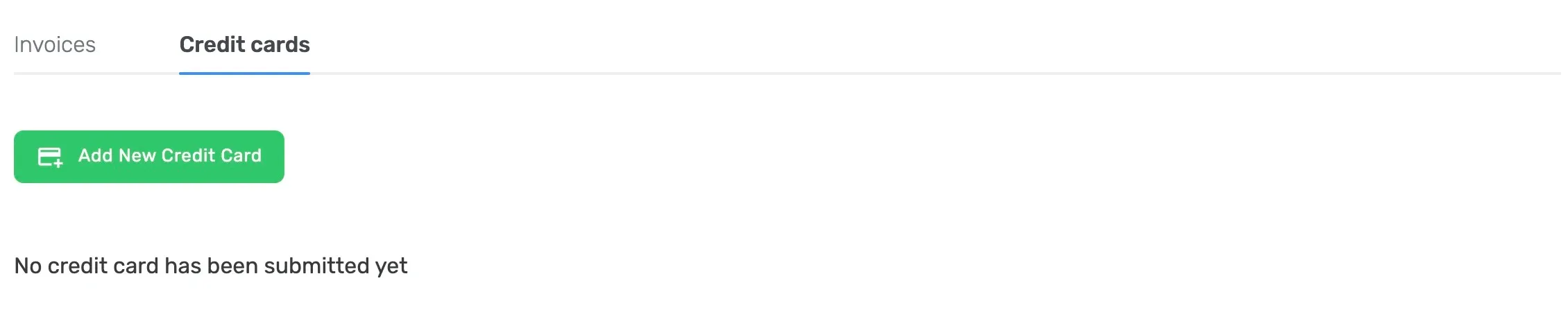
If no card is saved, the page displays No credit card has been submitted yet.
Check or replace a saved card
Section titled “Check or replace a saved card”After saving a card, check its masked details and expiry date. Use the actions offered for that card to manage it. The available actions can depend on the payment provider.
To replace an expiring or unusable card:
- Add the replacement card and confirm that it appears in the list.
- If the page offers a primary-card action, select it for the card you intend to use.
- Review automatic card payments and the payment method for the services that should use it.
- If you no longer need the old card, use its removal action when available and check that the correct card remains.
Removing a card does not cancel a service or settle an outstanding invoice. If the card cannot be removed or the page has no removal action, open a support ticket.
Check the payment method and invoices
Section titled “Check the payment method and invoices”The account’s Default payment gateway is under Account details → Settings → Billing. Selecting Card via Stripe chooses the card payment method; it does not by itself confirm that invoices will be collected automatically. See How to check automatic card payments before relying on automatic collection.
After changing a saved card, check Invoices for any payment still due. Adding a replacement card does not by itself confirm that an earlier failed payment has been retried or completed.
If a card cannot be saved, read the payment form’s error message and check the details you entered. If your bank declined the request, contact the bank. If the result is unclear, check the saved-card list before submitting the same form again. You can ask Kiravo support for help using the card’s last four digits and the error message, without sharing the full card details.