How to turn auto-renewal on or off
Auto-renewal controls whether Kiravo issues renewal invoices for a service automatically. It does not guarantee that those invoices will also be paid automatically.
-
Sign in to the Kiravo client area.
-
Open Services and choose the relevant category. If the list contains one service, click that service. If it contains several, click the service whose renewal setting you want to change.
-
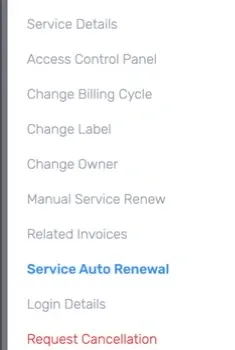
On the Service Details page, click Service Auto Renewal in the menu on the left.
-
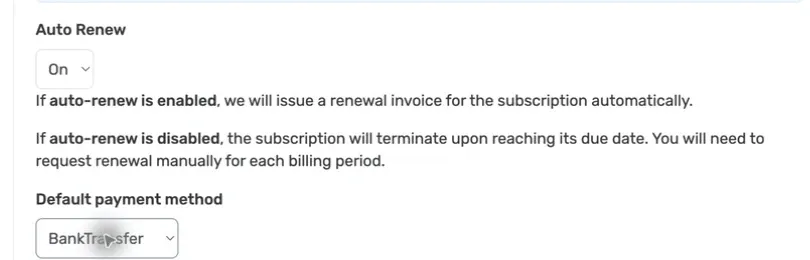
Open Auto Renew and choose the setting you want.
- Choose On to let Kiravo issue renewal invoices for this service automatically.
- Choose Off only if you accept that the service will terminate at its due date unless you renew it manually.
-
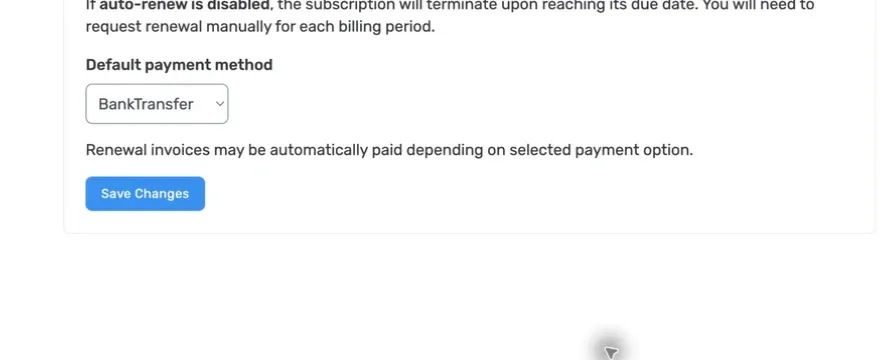
If you choose On, select the Default payment method. The list contains the methods available for the service. The page states that renewal invoices may be paid automatically, depending on the selected method. See automatic card payments before relying on a saved card.
-
Check both selections, then click Save Changes. Wait for the client area to confirm that it saved the setting.
-
Return to Service Details and check the Auto Renew row. It should show ON or OFF, matching the option you saved.
Turning auto-renewal on does not pay an invoice that already exists. Open Related Invoices to check each invoice and its payment status.
If the saved value does not appear after one reload, open a support ticket. Include the service ID and the setting you selected. Do not include passwords or payment-card details.