How to turn domain auto-renewal on or off
Auto-renewal tells Kiravo to start the renewal process before the domain expires. The domain renews only after the renewal invoice is paid. Turning auto-renewal off does not cancel the domain immediately. It remains registered until its expiry date.
Change one domain
Section titled “Change one domain”- Sign in to the Kiravo client area.
- Open Services → Domains and click the domain you want to change.
- On Domain details, check the domain name and expiry date.
- Find Auto Renew and use its toggle link to turn the setting on or off.
- Check that the status now shows the setting you selected.
Turning auto-renewal on does not pay an existing invoice or restore an expired domain. If the domain already has a renewal invoice, follow How to view and pay invoices.
Change several domains
Section titled “Change several domains”-
Open the domains list.
-
Tick the checkbox beside each domain you want to change.
-
Under With selected domains, choose Auto Renew and select the required state.
-
Check the Auto Renew column after the page updates.
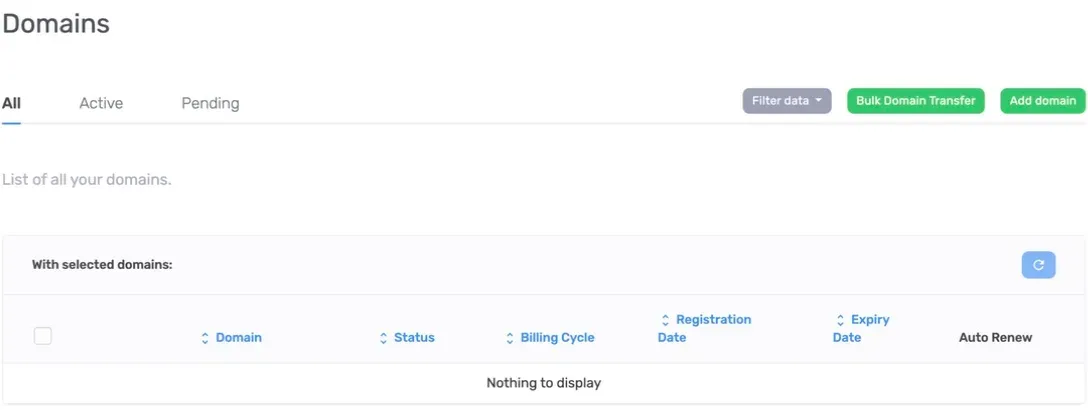
If the table shows Nothing to display, return to All and clear any filters. If an active domain has no auto-renewal control, open a support ticket and include the domain name.