How to access your hosting control panel
The Kiravo client area and the hosting control panel have different jobs. The client area contains your services, billing, account details, and support tickets. The hosting control panel contains your websites, files, databases, email, backups, and server settings.
You enter the hosting control panel through an active hosting service in the client area. Kiravo signs you in automatically, so you do not need a separate control-panel password.
Open the control panel
Section titled “Open the control panel”-
Open the client area
Sign in at my.kiravo.net.
-
Choose the hosting service
Open Services in the sidebar and select the active hosting plan you want to manage. If you have several plans, check the service label and domain before continuing. See Managing a service for the complete service list.
-
Open the control panel
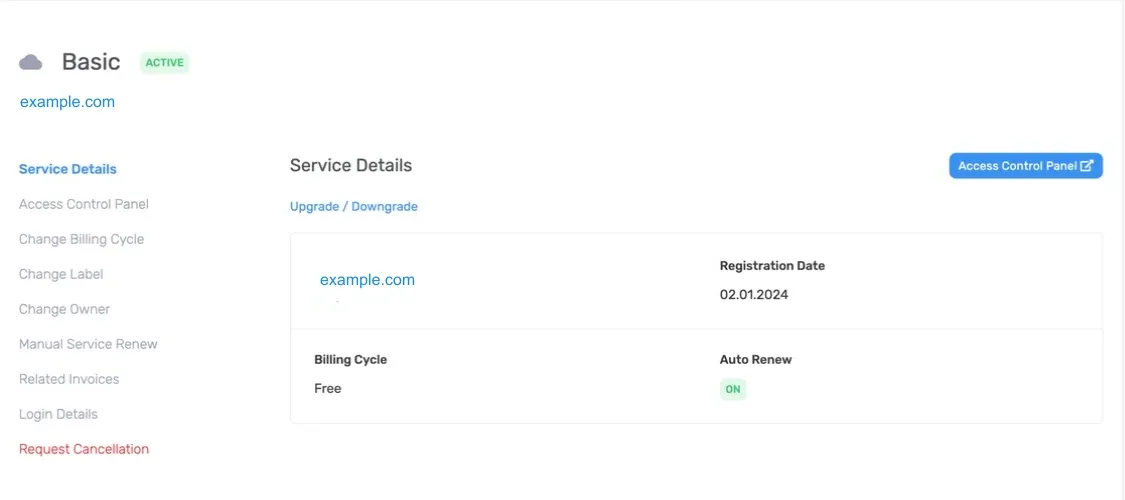
On the Service Details page, click Access Control Panel. You can use the button at the upper right of the details panel or the link in the service menu on the left.
-
Wait for the sign-in handoff
The control panel opens in a new browser tab. The client area creates a short-lived single-sign-on link and uses it to authenticate you. Do not copy or share the generated URL because it may contain a temporary security token.
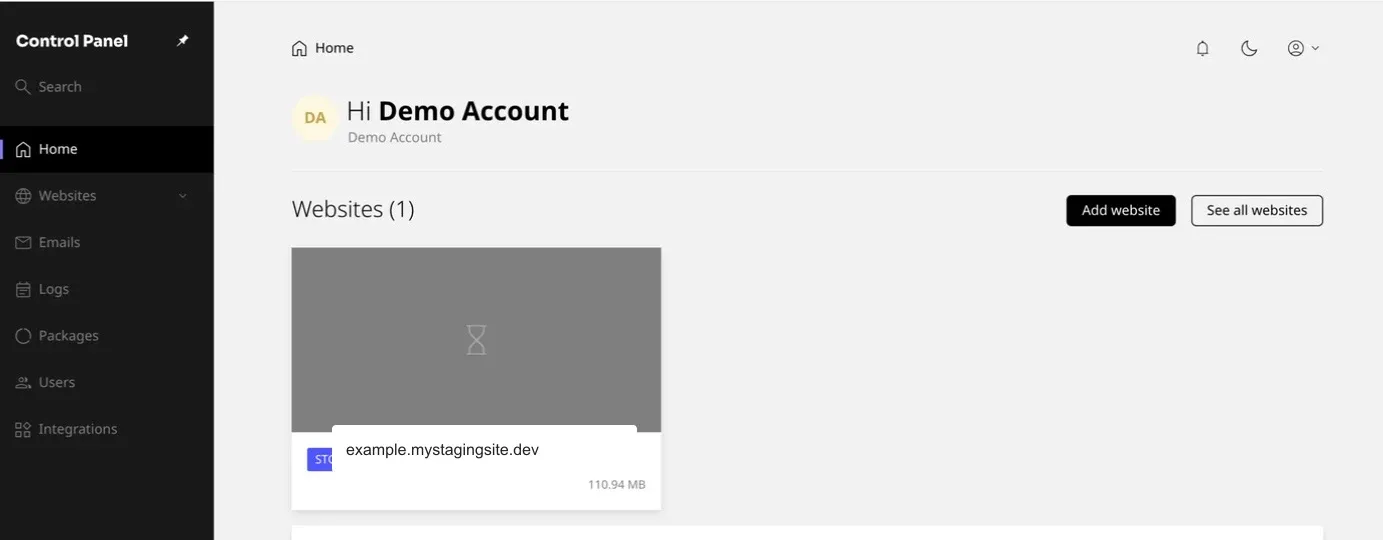
You are in the hosting control panel when the page has a dark sidebar headed Control Panel and sections such as Websites, Emails, Logs, and Subscriptions. Select Websites, then choose a website to manage its files, applications, domains, security, and backups.
If the control panel does not open
Section titled “If the control panel does not open”- The access link is missing. Confirm that you opened an active hosting service. Cancelled or inactive services do not provide control-panel access.
- The page returns to sign-in. Your client-area session may have expired. Sign in again, reopen the service, and use Access Control Panel once more.
- Nothing happens after clicking. Check whether the browser blocked a new tab or pop-up from
my.kiravo.net, allow it for this site, then retry. - The wrong websites appear. Close the control-panel tab, return to the client area, and check that you selected the intended hosting service.
- The panel reports an access error. Do not reuse an old single-sign-on URL. Start again from the service details page.
If the service is active and a new single-sign-on attempt still fails, open a support ticket. Include the service name, the time of the attempt, and the error message. Do not include your password or the single-sign-on URL.