Point your domain to Kiravo
If your domain is registered outside Kiravo, you need to connect it to the website created in your Kiravo hosting account. You can delegate DNS to Kiravo or keep DNS with your current provider.
These settings live in different places:
- The Kiravo client area at
my.kiravo.netcontains your services, invoices, account details, and support tickets. - The hosting control panel contains your websites, files, databases, email, and DNS settings.
- Your domain registrar or DNS provider is where you apply the nameserver or DNS-record changes.
Open the hosting service in the client area, then click Access Control Panel to reach the hosting control panel.

Choose a connection method
Section titled “Choose a connection method”Use one method, not both:
| Method | Choose it when | Where you manage DNS afterwards |
|---|---|---|
| Kiravo nameservers | You want Kiravo to host the full DNS zone. This is the simplest option for a new domain without existing email or third-party services. | Kiravo control panel |
| External DNS records | You want to keep Cloudflare, Route 53, your registrar’s DNS, or another existing provider. | Your current DNS provider |
Method 1: Use Kiravo nameservers
Section titled “Method 1: Use Kiravo nameservers”-
Find the assigned nameservers
In the hosting control panel, open Websites, select the website, and look for the highlighted notice near the top of its dashboard. Copy both nameserver values from that notice.
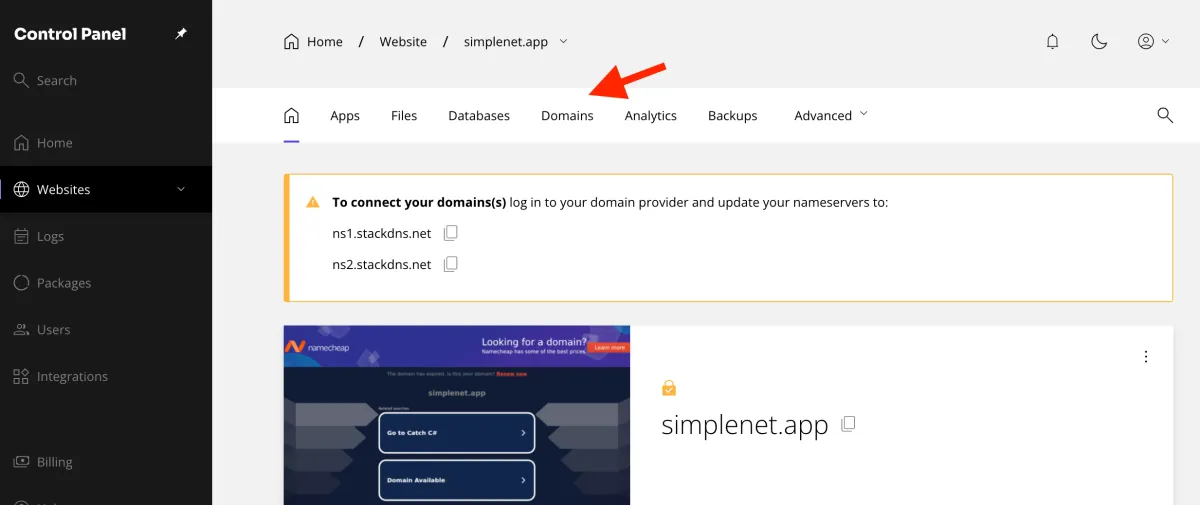
Always use the values shown for your website. Do not copy nameservers from this guide or from another account.
-
Open the domain at its registrar
Sign in to the company where the domain is registered. Open the domain’s settings and find Nameservers, DNS / Nameservers, or Custom DNS.
-
Replace the current nameservers
Choose the custom-nameserver option, replace the existing values with both nameservers copied from Kiravo, and save the change. Leave additional nameserver fields empty unless the control panel gives you more values.
-
Recheck records managed by Kiravo
Once the delegation is active, manage the zone from the website’s Domains tab in the hosting control panel. Confirm that every record needed for website traffic, email, verification, and other services is present. See Manage domains and DNS.
Method 2: Keep your current DNS provider
Section titled “Method 2: Keep your current DNS provider”This method changes only the records used by the website. Your nameservers stay as they are, and all future DNS changes continue to happen at the current DNS provider.
-
Find the website’s IPv4 address
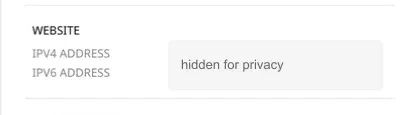
Open the website in the hosting control panel. On its Home dashboard, find At a glance, then copy the IPv4 address shown under Website. Do not use the address listed under MySQL.
-
Open the DNS zone at your current provider
This may be your registrar, Cloudflare, Route 53, or another DNS service. Do not change the domain’s nameservers.
-
Update the root domain
Create or update this record, using the IPv4 address copied from the Kiravo control panel:
Type Host or name Value A@Your Kiravo website IPv4 address -
Update the
wwwhostnameUse one of the following configurations. Do not create both:
Type Host or name Value CNAMEwwwYour root domain, such as example.comAwwwYour Kiravo website IPv4 address A
CNAMEkeepswwwtied to the root domain. If your provider does not accept that configuration, use theArecord instead. -
Remove conflicting website records
Remove any old
A,AAAA, orCNAMErecord for@orwwwthat sends visitors to the previous host. An oldAAAArecord can still send IPv6 visitors to the wrong server even when the newArecord is correct.Keep unrelated records, including
MX, SPF, DKIM, DMARC, verification records, and records for other subdomains. If you use Cloudflare’s proxy, temporarily switching the website records to DNS only can make the first DNS and certificate checks easier. You can restore the proxy after the site works over HTTPS.
Wait for DNS caches to update
Section titled “Wait for DNS caches to update”There is no guaranteed propagation time. Some resolvers pick up the change quickly, while others keep the previous answer until its TTL expires. Avoid repeatedly changing the records while caches are updating.
You can use the temporary PREVIEW address from the website’s Domains tab to inspect the Kiravo copy before public DNS finishes updating.
Verify the connection
Section titled “Verify the connection”Open the website’s Domains tab in the hosting control panel and check the DNS status for the domain:
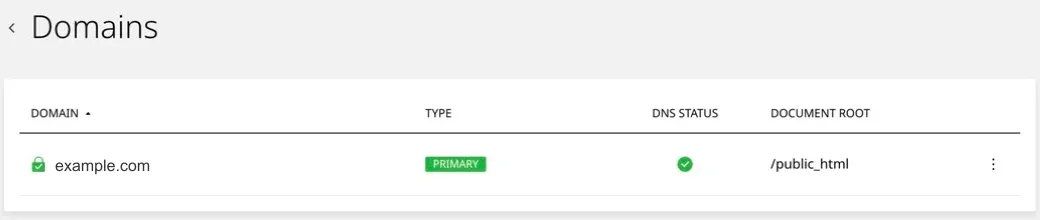
- A green status indicates that the domain resolves to the website’s server.
- A warning indicates that the panel cannot confirm the expected DNS yet.
Also test both example.com and www.example.com in a private browser window. Confirm that HTTPS works and that the correct site opens. If only one hostname works, check its separate A, AAAA, or CNAME record.
If the warning remains after the old TTL has expired, compare the public DNS values with the exact nameservers or IPv4 address shown in your control panel. For help, open a support ticket and include the domain name and the DNS provider you use. Do not include account passwords or registrar recovery codes.