How to place an order
This guide covers your first order. You choose a plan on the public Kiravo website, then complete the order through Kiravo’s checkout at my.kiravo.net.
The checkout is part of the Kiravo client platform. It is separate from the hosting control panel you use to manage websites after a service becomes active. To order additional services or register domains later, see Services and Domains.
-
Open the pricing page
Go directly to Kiravo pricing. From the homepage, you can reach the same page through Pricing in the navigation or a Find your plan link.
-
Choose a plan
The pricing page shows four hosting plan types: Business, Publisher, eCommerce, and VPS. Switch tabs to compare them. Each plan has a Get this plan button.
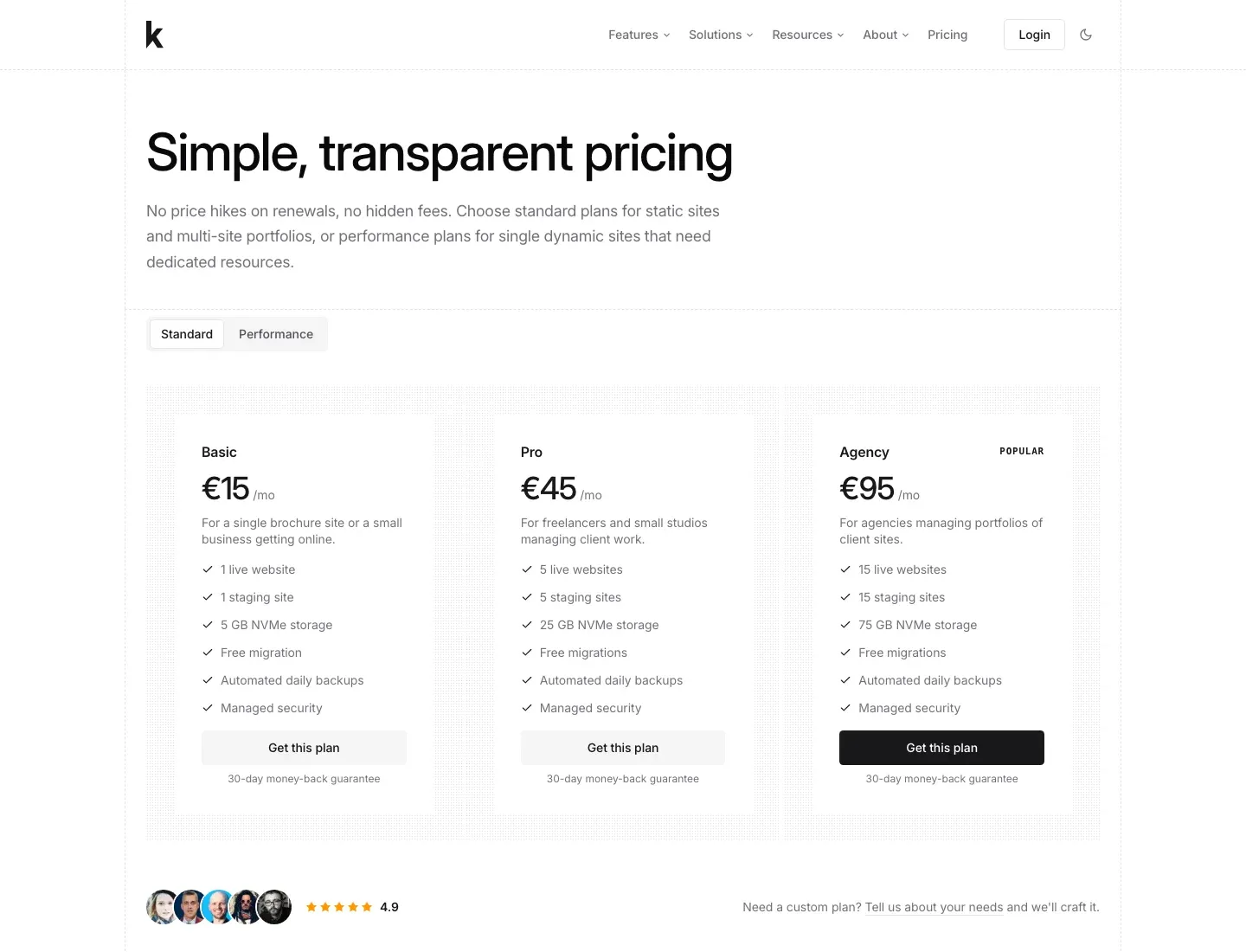
Click Get this plan under the plan you want. This opens the checkout flow on
my.kiravo.net. -
Configure the product
The first checkout step confirms the selected plan and its included websites and storage. Choose a billing cycle:
- Monthly
- Annually, currently shown with a 17% discount
The cart summary shows the setup fee, recurring price, selected currency, and amount due at this stage. Available currencies currently include EUR, USD, GBP, and Romanian lei. Use the currency shown in the checkout when comparing totals.
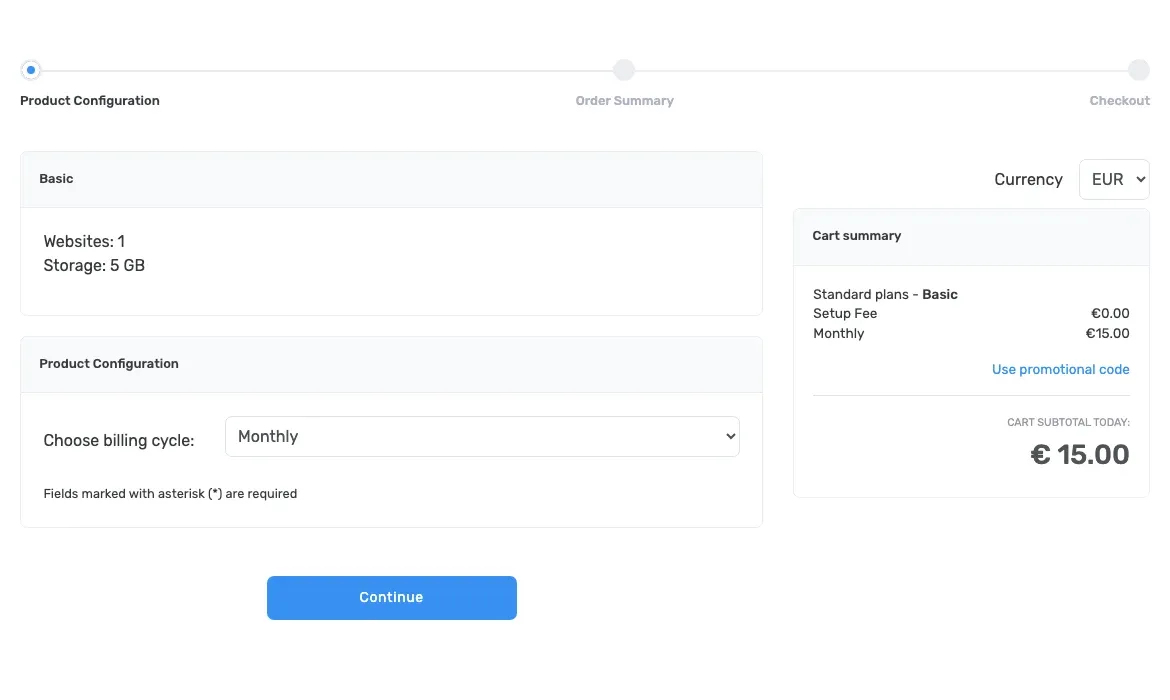
If you have a promotional code, select Use promotional code, enter it, and submit it before continuing. Click Continue when the product configuration is correct.
-
Review the order summary
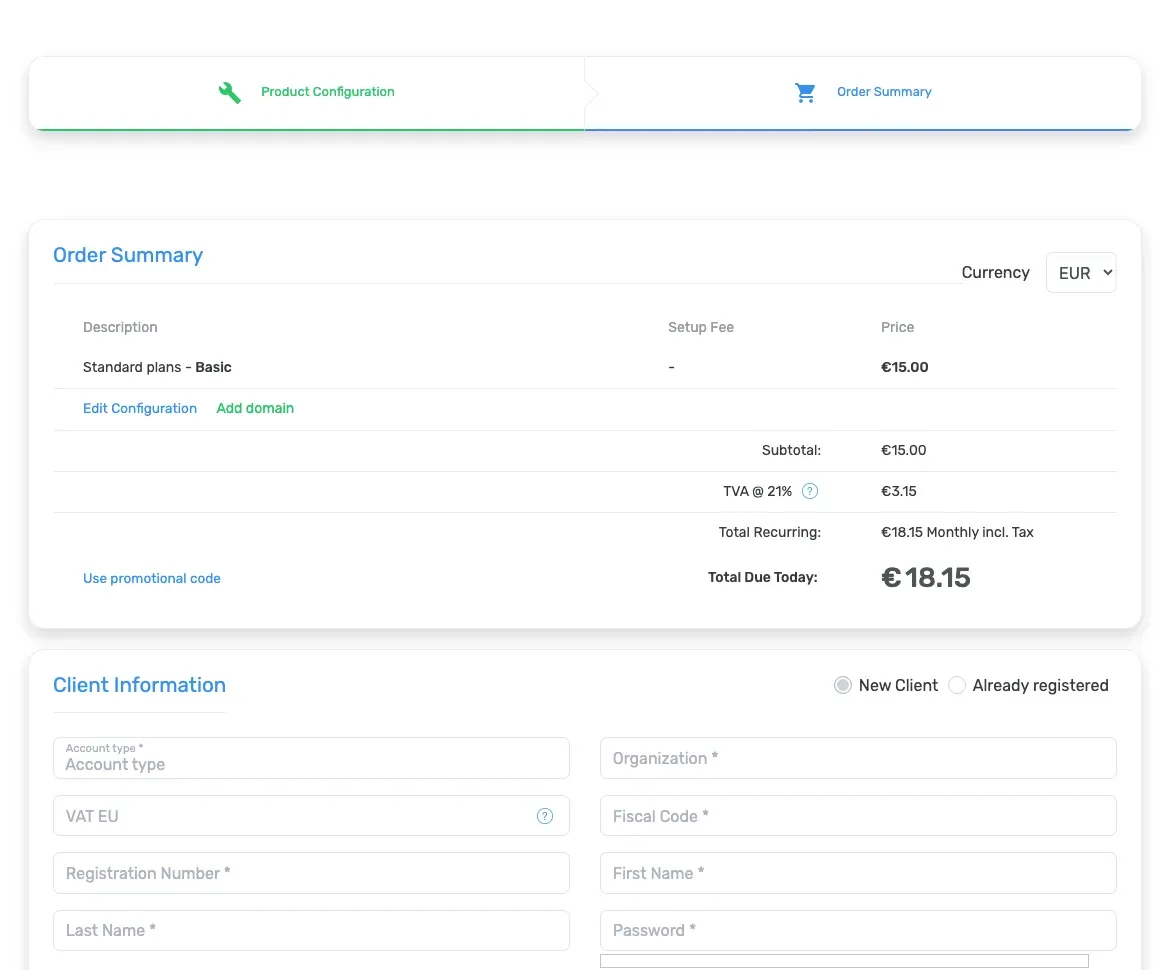
The next step shows the product, price, subtotal, applicable tax, recurring total, and Total Due Today. Taxes and totals can change with the selected currency, billing cycle, billing country, and validated tax information.
You can use Edit Configuration to change the plan settings or Add domain if you also want to register a domain. Confirm the summary before entering your client information.
-
Enter your client information
Below the summary, choose whether you’re a new or returning customer:
- Already registered: enter your email address and password, then click Submit to log in.
- New client: fill in your details. Most people start here.
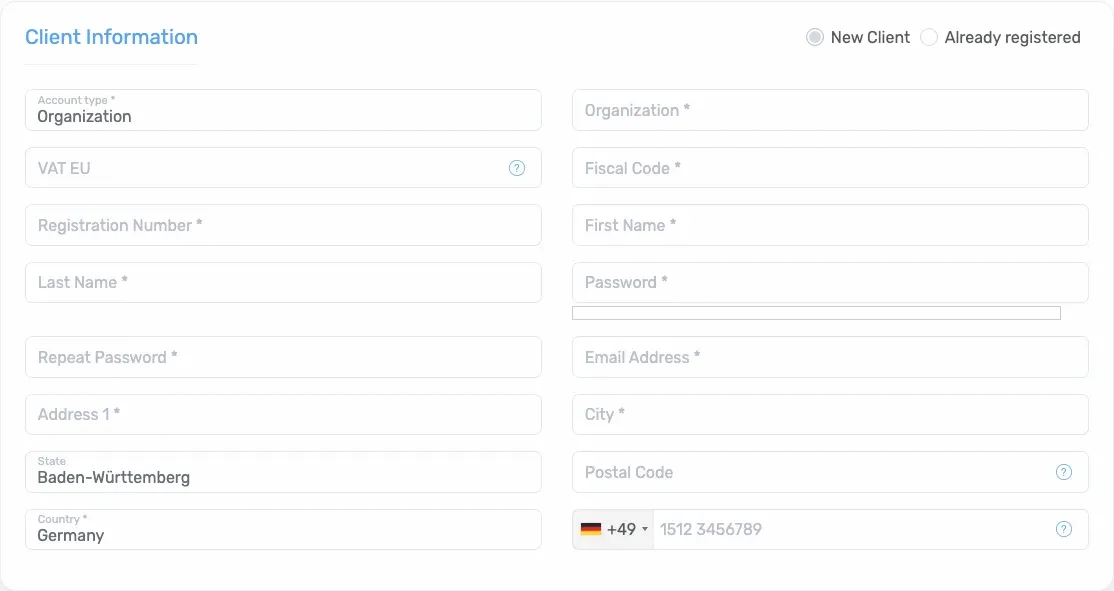
New clients must select an Account type, either Personal or Organization. A personal account asks for:
- First name and last name
- Password and repeat password
- Email address
- Address, city, state or county, postal code, and country
- Phone number
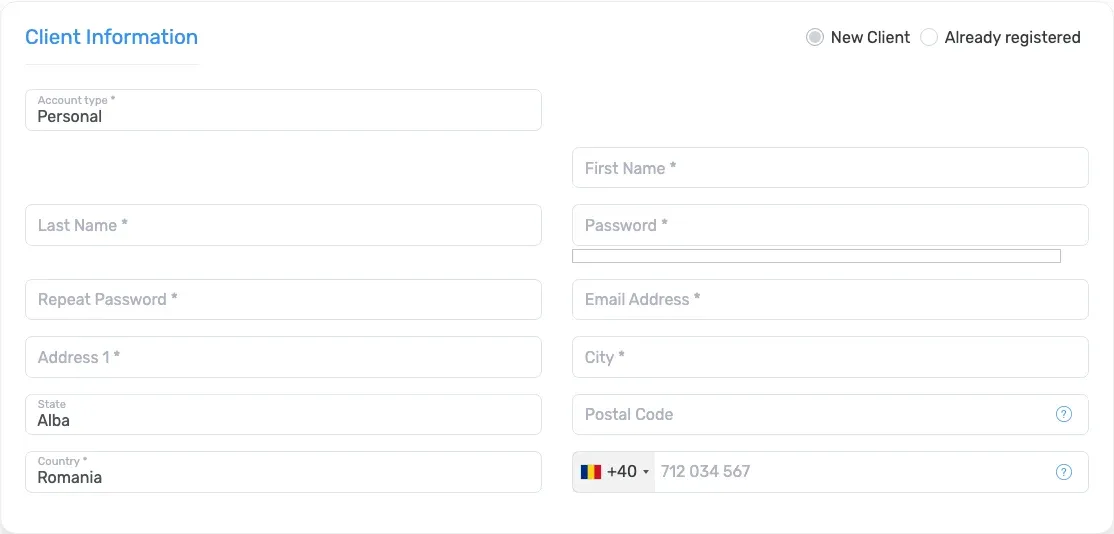
An organization account asks for the same contact details plus the organization name, fiscal code, and registration number.
-
Accept the terms and pay
Read the Terms of Service and Acceptable Use Policy, then select I have read and accepted Terms of Service. Kiravo’s checkout currently offers Card via Stripe. Enter the card details in Stripe’s secure card field only when you are ready to place the order.
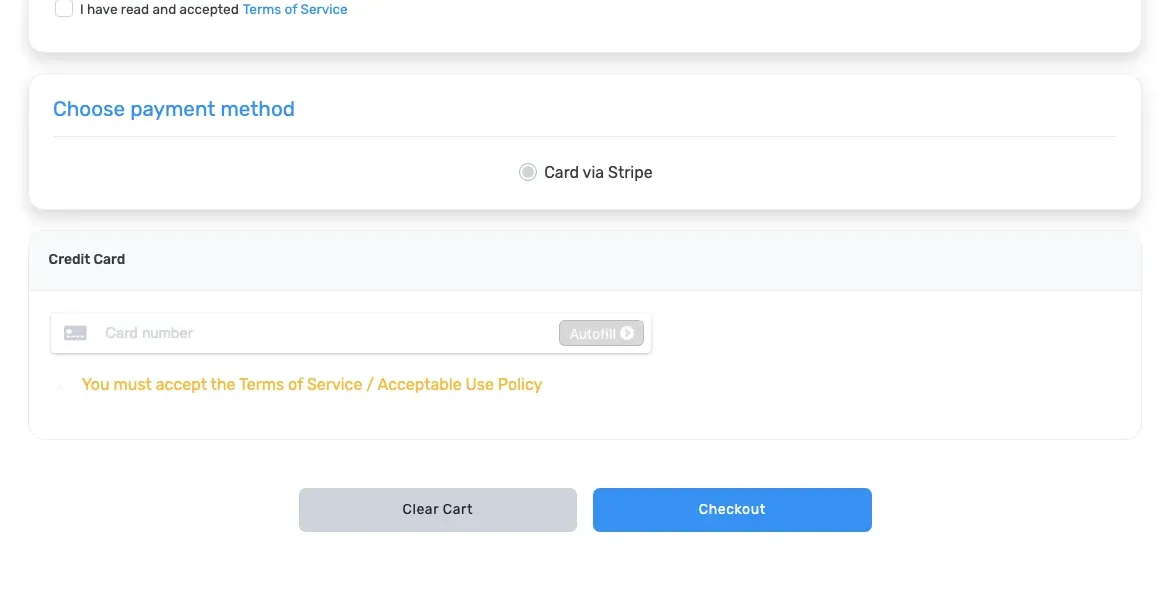
Review the amount due once more, then click Checkout. Do not refresh the page or submit the form again while the payment is processing.
-
Keep the confirmation details
After payment succeeds, keep the order number shown on the confirmation screen and check your email for the order and service messages. Do not publish screenshots of the confirmation page because its identifiers belong to your account.
You can then sign in to the client area to follow the service status. The hosting control panel becomes relevant after the service is active and a website has been created. If you have questions about the order, open a support ticket from the client area and quote the order number. See the Privacy Policy for how Kiravo handles account and order information.