How to change your billing cycle
The billing cycle controls how often Kiravo renews a service. The available cycles depend on the product.
Changing the billing cycle does not change the service’s resources. Use Upgrade or Downgrade when you need a different plan.
-
Sign in to the Kiravo client area.
-
Open Services and choose the relevant category. If the list contains one service, click that service. If it contains several, click the service whose billing cycle you want to change.
-
On the Service Details page, click Change Billing Cycle in the menu on the left.
-
Read the Billing Cycle row. It shows the current recurring amount and current cycle.
-
Open New Billing Cycle and select the cycle you want. Only the options listed in this selector are available for the service.
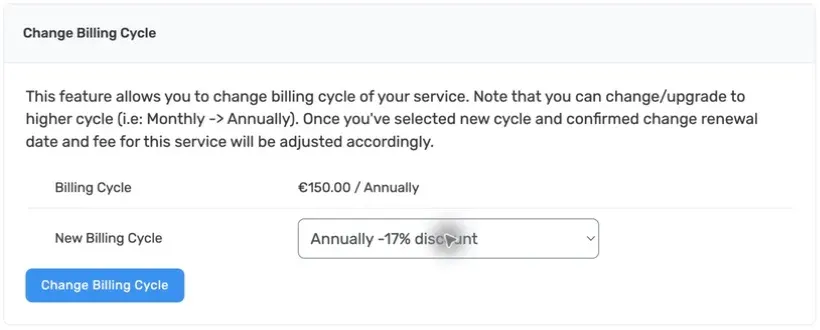
The form does not preview the exact new recurring amount or renewal date before submission. The page warns that it will adjust both after the change. If you need those values before continuing, open a support ticket and ask for a calculation for the service.
-
Click Change Billing Cycle. The system asks whether you are sure. Review the selected cycle again, then confirm the dialog to apply the change. Close or cancel the dialog if you do not want to continue.
-
After you confirm, wait for the success message. Return to Service Details and check the Billing Cycle and Recurring Amount rows.
The change does not turn automatic renewal on or off. Manage that setting separately under Auto-renewal.
If the cycle or amount is not what you expected
Section titled “If the cycle or amount is not what you expected”If you are unsure about the resulting price or renewal date, do not submit the form. Ask support to confirm the effect first.
If the updated cycle does not appear after a success message, reload Service Details once. If it is still unchanged, open a support ticket. Include the service ID and the cycle you selected. Do not include passwords or payment-card details.