How to request cancellation of a service
Cancel the service only when you no longer need the hosting account. Before you continue, download any website files, databases, email, and other data you want to keep. You may lose access to them after the service ends.
-
Sign in to the Kiravo client area.
-
Open Services and choose the relevant category. If the list contains one service, click that service. If it contains several, click the service you want to cancel.
-
On the Service Details page, click Request Cancellation in the menu on the left.
-
Check the service name shown under Cancellation Request. Use Back if you opened the wrong service.
-
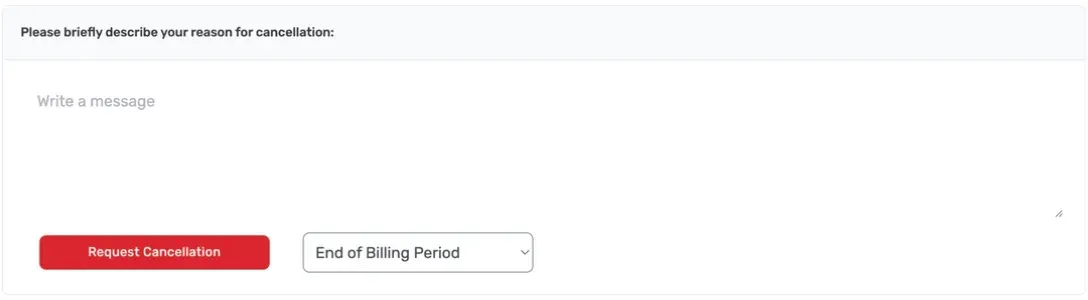
Briefly explain why you are cancelling the service in the message box.
-
Open the cancellation-type menu and choose one of the options available for your service. End of Billing Period keeps the service scheduled to end when its current paid period finishes. Other cancellation types appear only when they apply to the service.
-
Check the service, reason, and cancellation type again. Click Request Cancellation only when you are ready to submit the request. Opening this page does not cancel the service, but clicking the button sends the request.
-
Check your email and the service status for confirmation that Kiravo received the request.
If you submitted a request for the wrong service or chose the wrong cancellation type, open a support ticket as soon as possible. Include the service ID, but do not include passwords or other login details.