Managing your domains
The Domains area lets you view and manage every domain registered under your account. Open it from the sidebar under Services → Domains, or go directly to my.kiravo.net/clientarea/domains/.
The domains list
Section titled “The domains list”Each domain is listed with these columns:
- Domain: the domain name. Click it to open its management page.
- Status: the domain’s current state, such as Active or Pending.
- Billing Cycle: the registration period (for example, 1 year).
- Registration Date: when the domain was first registered.
- Expiry Date: when the current registration expires.
- Auto Renew: whether automatic renewal is on or off.
The All / Active / Pending tabs at the top filter the list by status.
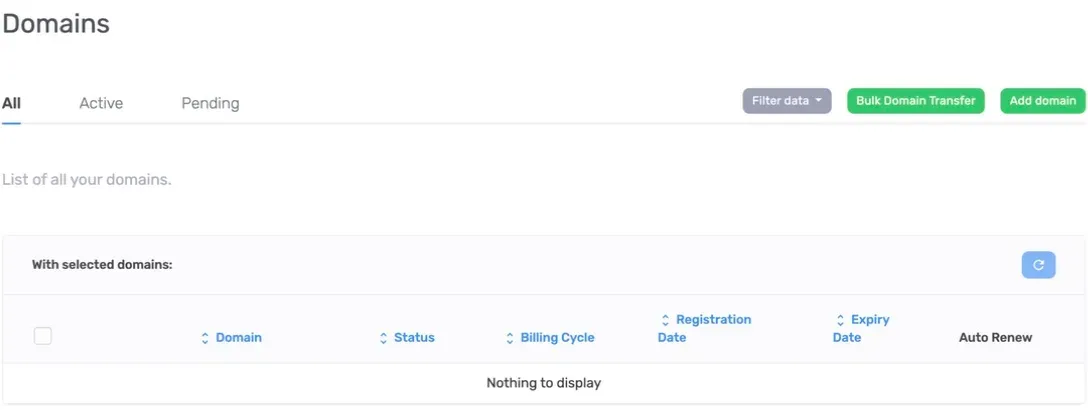
If the account has no domains in the selected tab, the table shows Nothing to display.
Filter and search
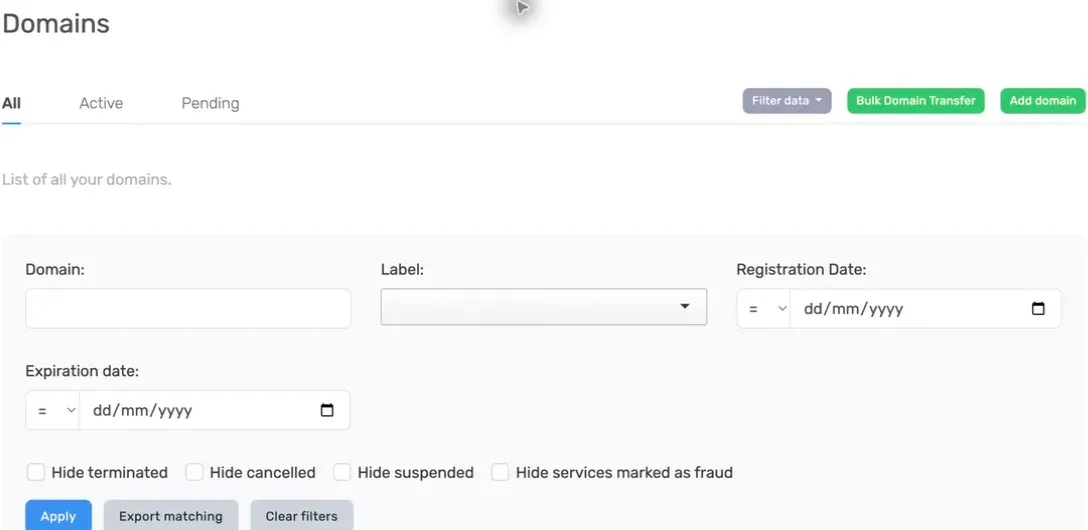
Section titled “Filter and search”Click Filter data to open the filter panel. You can narrow the list by Domain, Label, Registration Date, or Expiration date. The date filters use = for the selected date, < for an earlier date, and > for a later date.
You can also tick Hide terminated, Hide cancelled, Hide suspended, or Hide services marked as fraud. Use Apply to run the filter, Export matching to export the results, or Clear filters to reset it.
Row actions
Section titled “Row actions”When the list contains domains, each row has two quick controls on the right:
- The three-dot menu opens Show details (jump to the management page) and Edit Label.
- The arrow (→) opens the full domain management page.
Bulk actions
Section titled “Bulk actions”Tick the checkboxes next to one or more domains, then use the With selected domains toolbar. The available actions depend on the selected domains and can include:
- Add Years / Renew: renew multiple domains at once.
- Nameservers: update nameservers for all selected domains.
- Auto Renew: turn auto-renewal on or off for the selected domains.
- Contact Information: update WHOIS / registrant details across domains.
- Registrar Lock: enable or disable the transfer lock on the selected domains.
Add or transfer domains
Section titled “Add or transfer domains”Two buttons sit at the top right of the list:
- Add domain: opens the domain search and ordering flow to register a new domain.
- Bulk Domain Transfer: transfer several domains into your account at once. Enter one domain per line as
example.com:AuthCode(the domain, a colon, then its transfer/authorization code), then click Submit.
Open a domain
Section titled “Open a domain”Click a domain name (or its arrow) to open its management page. The header shows the domain name and status, with a left-hand menu for each action. The default Domain details view shows the registration and expiry dates (with a countdown of days remaining), a Renew Domain link, the Registrar Lock and Auto Renew status, and a Nameservers summary.
From here you can renew, set nameservers, register private nameservers, lock the domain, label it, transfer ownership, and view its invoices.