How to upgrade or downgrade a service
Use Upgrade / Downgrade when you need a plan with different resource limits. If you only want to change how often the same plan renews, follow How to change your billing cycle.
Before moving to a smaller plan, compare its website and storage limits with your current usage. Make a current backup and resolve any usage above the new limits before submitting the change. If the plan you need is not listed, ask Kiravo support to check whether the change is available for your service.
-
Sign in to the Kiravo client area.
-
Open Services and choose the relevant category. If the list contains one service, click that service. If it contains several, click the service whose plan you want to change.
-
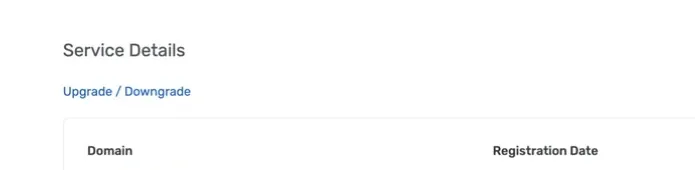
On the Service Details page, click Upgrade / Downgrade in the main service card. This link is not in the menu on the left.
-
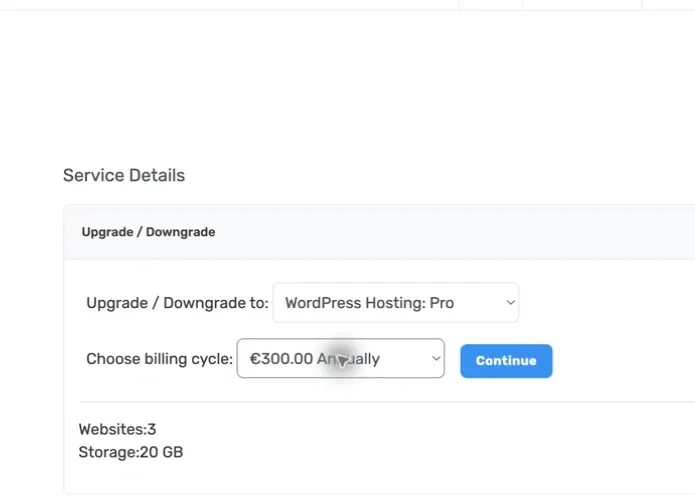
Select the new plan under Upgrade / Downgrade to, then choose its billing cycle. The form shows only the plans and cycles currently available for that service. Check the resource limits displayed below the selectors, then click Continue.
-
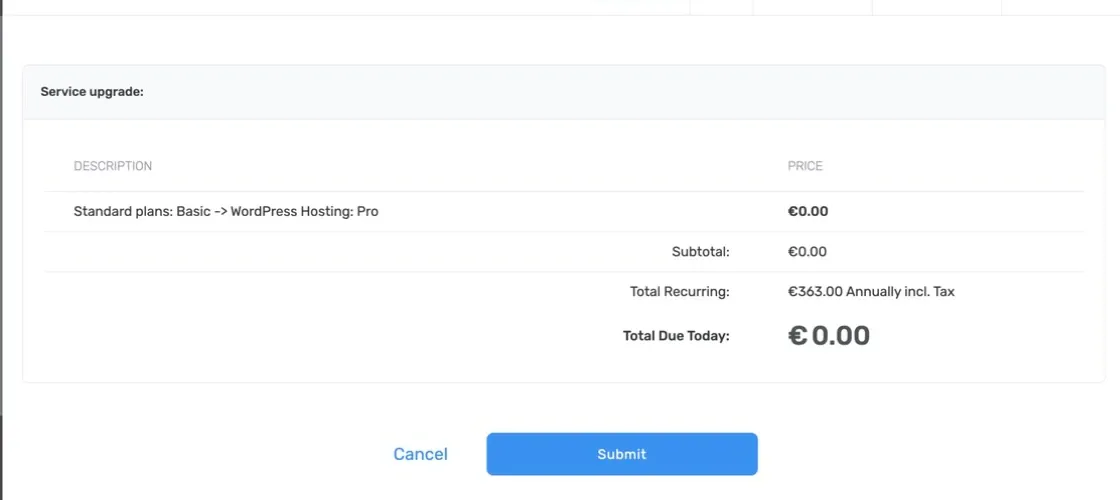
Review the Service upgrade summary. Check the current and new plans, the one-time price or adjustment, Total Recurring, its billing cycle, tax, and Total Due Today. The amount due today can differ from the new recurring total.
-
If a payment-method section appears, choose the method you want to use. Click Submit only after the plan and both totals are correct. This confirms the change and may create an invoice or send you to payment when an amount is due.
-
Follow the confirmation shown by the client area. Then return to Service Details and verify the plan name, recurring amount, and billing cycle. Check Related Invoices if the change generated an invoice.
Do not assume the change is complete until the client area shows the expected plan and status. If the result remains pending, the displayed plan does not change, or the invoice amount is unclear, open a support ticket. Include the service ID and invoice number when available, but do not include passwords or payment-card details.