How to view invoices for a service
Related Invoices limits the list to invoices linked to the service you selected. To search every invoice in the account, use Billing and then Invoices.
-
Sign in to the Kiravo client area.
-
Open Services and choose the relevant category. If the list contains one service, click that service. If it contains several, click the service whose invoices you want to view.
-
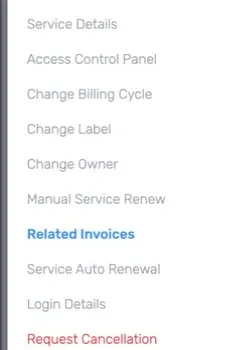
On the Service Details page, click Related Invoices in the menu on the left.
-
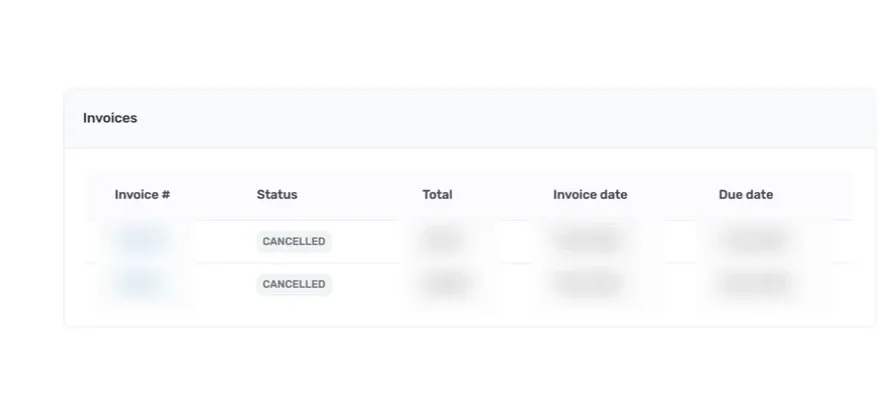
Read the invoice table. It shows Invoice #, Status, Total, Invoice date, and Due date. Use Status to tell whether an invoice still needs attention. Do not try to pay an invoice marked as cancelled.
-
Click the invoice number to open the full invoice. Check the status, billed items, totals, amount paid, and amount left to pay.
-
Use Print Invoice to print it, or Download PDF to save a copy. The PDF contains account and billing information, so do not publish it or send it to someone who should not have access.
-
If the invoice is payable, use only the payment options shown on its page. Follow How to view and pay invoices for the account-wide invoice and payment flow.
An empty table means that the client area is not showing an invoice linked to this service. Check the account-wide invoice list before creating another renewal invoice or repeating an order.
If an expected invoice is missing or its service, amount, or status looks wrong, open a support ticket. Include the service ID and invoice number when available. Do not include card details, passwords, or a private invoice download link.