How to transfer a service to another account
Use Change Owner to move the selected hosting service to another Kiravo account. If you only want to change the name shown in your own service list, use Change Label instead.
-
Sign in to the Kiravo client area.
-
Open Services and choose the relevant category. If the list contains one service, click that service. If it contains several, click the service you want to transfer.
-
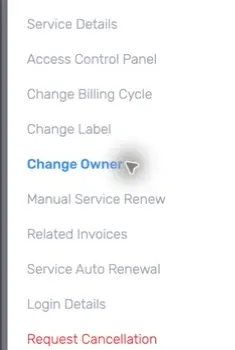
On the Service Details page, click Change Owner in the menu on the left.
-
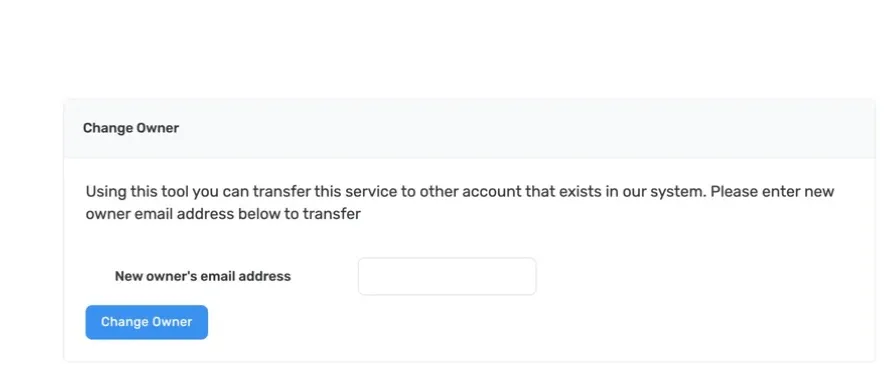
Read the notice on the Change Owner page. If you opened the wrong service, return to Services and select the correct one.
-
Enter the email address associated with the recipient’s existing Kiravo account under New owner’s email address. Check every character with the recipient. Do not enter their password.
-
Click Change Owner only when you are ready to transfer the service. Follow any confirmation shown by the client area.
-
Check the result shown after submission. The current owner should check that the service no longer appears in their list. The recipient should sign in to their own account and confirm that the service appears there.
If the recipient’s email is rejected, confirm that it belongs to an existing Kiravo account. If the result is unclear or the service appears in neither account, open a support ticket. Include the service ID and both account email addresses, but do not include either account’s password or control-panel credentials.